PV/PVC List
Requirements
-
The WhaTap Kubernetes agent 1.8.1 or later is required.
-
If it is a Kubernetes cluster project (
CP), you can view the corresponding menu.
Persistent Volume (PV) indicates a physical storage resource available in the Kubernetes cluster. Persistent Volume Claim (PVC) is an object that declaratively defines the storage requirements of the Pod. PVC is associated with a PV and provides an access path for the Pod to read and write data.
WhaTap Kubernetes can monitor the storage status of the cluster through the Persistent Volume List and Persistent Volume Claim List menus. This menu intuitively provides the usage status and connection relationships of storage resources, and allows you to check information such as storage capacity, access mode, and event status at a glance.
Persistent Volume List
Home > Select Project > Storage > Persistent Volume List
In Persistent Volume List, you can view the PVs that exist in the cluster. The list is displayed based on the PV information collected over the last minute on the query time. You can intuitively check the connection with PVC and the binding of PV. You can also easily check the PVC information details associated with the PV.
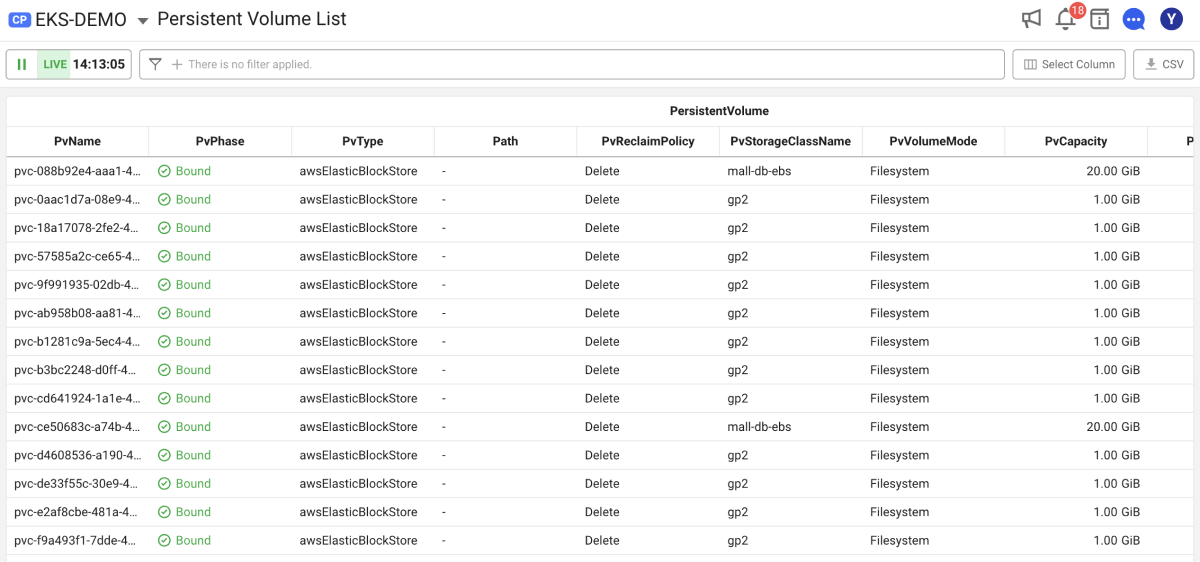
- If the
 CSV button is clicked, you can download the CSV file.
Persistent Volume Claim List
Home > Select Project > Storage > Persistent Volume Claim List
In Persistent Volume Claim List, you can view the PVCs that exist in the cluster. The list is displayed based on the PVC information collected over the last minute on the query time. You can intuitively check the connection with PV and the binding of PVC. You can also easily check the PV information details associated with the PVC.
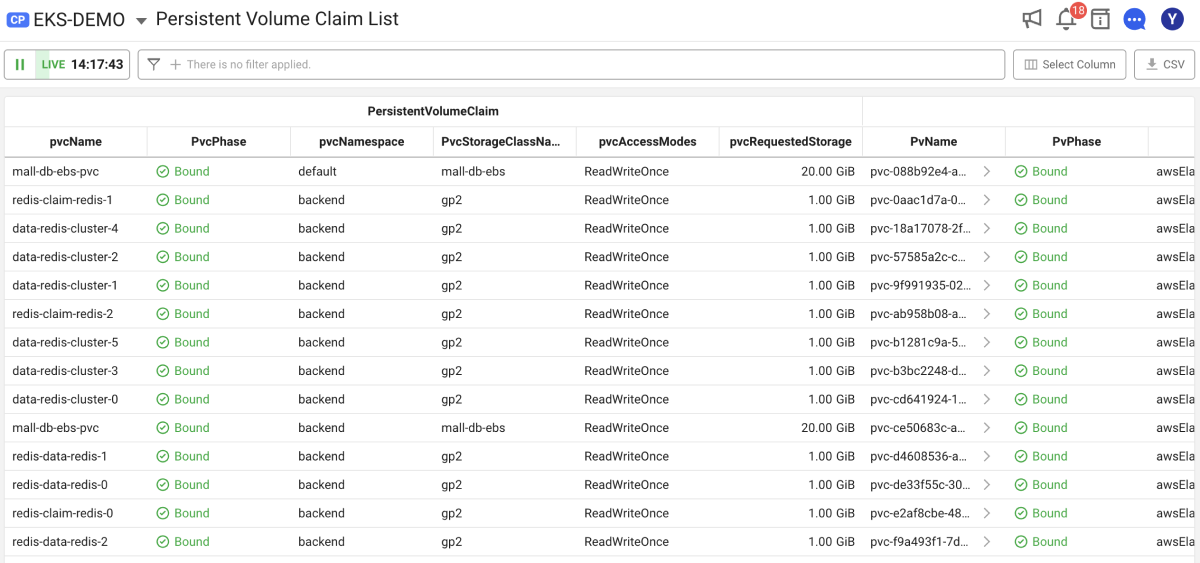
-
If the
CSV button is clicked, you can download the CSV file. -
Click the > button on the right of the PvName column. Then the Persistent Volume List menu appears.
Filtering
By using the Filtter option, you can select a desired for view. Through the and condition, multiple filters can be applied.
-
If you select
 Add icon in the
  Filter field, the Add filter window appears as follows: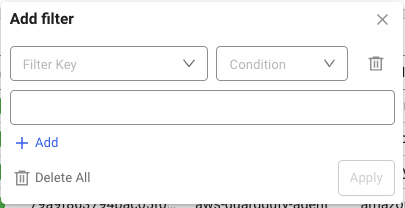
-
Select Filter Key and Condition.
-
Select a value that meets the conditions.
-
-
Configure a filter and then select Apply to apply the filter.
-
To add multiple filters, select
Add icon in the Filter field or Add filter window.
Columns
| Group | Column name | Description |
|---|---|---|
| PersistentVolume | PvUid | Unique ID of the persistent volume. |
| PvName | Name of the persistent volume. | |
| PvPhase | It displays the current status of the persistent volume. | |
| PvType | Storage type of the persistent volume. | |
| Path | It indicates the mounting path of the persistent volume. | |
| PvReclaimPolicy | It indicates the reclamation policy of the persistent volume. | |
| PvStorageClassName | Name of the storage class assigned to the PV. | |
| PvVolumeMode | It indicates the volume mode property of the persistent volume. | |
| PvCapacity | It displays the total storage capacity of the persistent volume. | |
| PvMessage | This message explains why the current persistent volume had a specific phase. | |
| PvReason | This keyword displays the errors related to the persistent volumes, briefly indicating the cause of the problem or the current status. | |
| PersistentVolumeClaim | PvcUid | Unique ID of the persistent volume claim. |
| PvcName (PVC) | Name of the persistent volume claim. | |
| PvcNamespace | It indicates the namespace to which the persistent volume claim belongs. | |
| PvcStorageClassName | Name of the storage class set for the persistent volume claim. | |
| PvcAccessModes | It indicates the access mode of the persistent volume claim. | |
| PvcRequestedStorage | Storage capacity requested by the persistent volume claim. |
-
For more information about the reclamation policy of the persistent volume, see the following.
Retain, Delete
-
For more information about the volume mode of the persistent volume, see the following.
Filesystem, Block
-
For more information about the access mode of the persistent volume, see the following.
ReadWriteOnce, ReadOnlyMany, ReadWriteMany
Phase
PvPhase
PvPhase displays the status of the persistent volume.
| Phase | Description |
|---|---|
| Available | The PV is not yet bound to any PVC. |
| Bound | The PV is bound to a specific PVC and is in use. |
| Released | The PVC has been deleted, but the PV has not yet been reclaimed. |
| Failed | PV is unusable because it failed to auto-reclaim. |
PvcPhase
PvcPhase indicates the status of the persistent volume claim.
| Phase | Description |
|---|---|
| Pending | The PVC is not yet bound to a PV or is waiting for PV allocation. |
| Bound | The PVC is bound to a specific PV and is in use. |
| Lost | The connected PV has been deleted or is no longer valid and cannot be used. |
Select Column
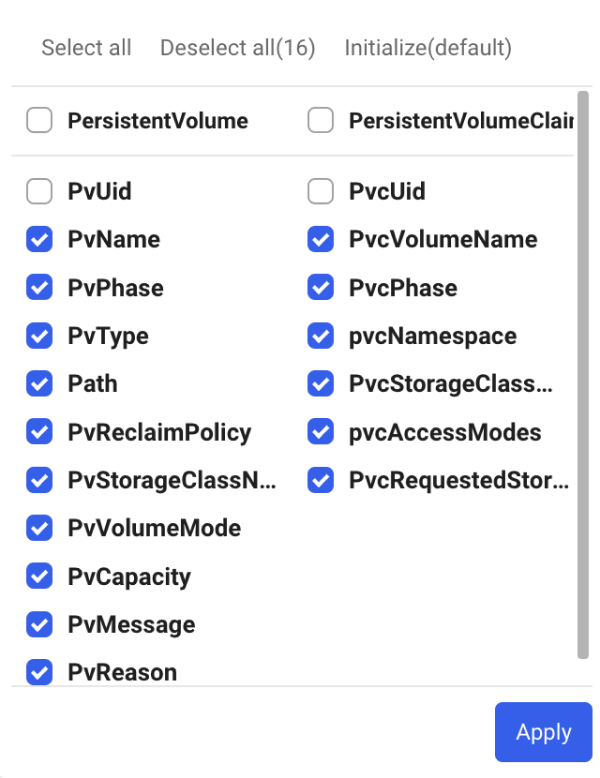
When using the Select column option, you can select the desired data to view the list.
-
The selected column list is kept even if you re-enter the menu.
-
If you select Reset, the predefined default key metric columns are selected. In this case, the column selection history is deleted.
-
After selecting a column, you can click Apply at the lower right to apply the selected values.
You can bulk select or unselect PersistentVolume or PersistentVolumeClaim column group.