Workspace overview
A workspace is a unit for managing your company's WhaTap users in one place. The owner and members with permissions invite users, set roles and permissions, and apply security policies such as MFA. When you connect an organization to a workspace, only members can access that organization and its groups and projects.
Before you create a workspace, review the roles, permissions, and basic rules. Adopting a workspace also changes some existing organization and project management screens.
Workspace structure
Projects, groups, and organizations are units for managing monitoring targets. A workspace is a unit for managing the users who access those targets.
When you connect an organization to a workspace, the organization and its groups and projects belong to the workspace. To access these organizations, groups, and projects, you must be a workspace member. Organizations that are not connected work as before.
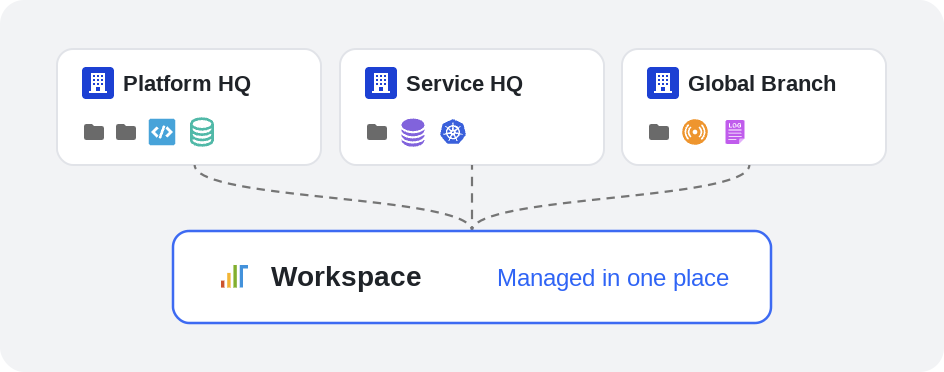
Adopting a workspace changes the following.

| Category | Before | After adopting a workspace |
|---|---|---|
| User management | No unit for managing multiple accounts together | Managed as workspace members |
| MFA enforcement | No way to enforce MFA for all users | Enforced or exempted with the MFA default policy and per-member policies |
| Lost authentication device | Request MFA removal from WhaTap | A member with the People account control permission resets the OTP key |
| Delegating admin tasks | Cannot manage another user's account on their behalf | The owner grants admin permissions to members |
| Organization access | Any user assigned to the organization or project can access it | Only members can access connected organizations |
Roles
Each user in a workspace has one of the following four roles.
- Owner: The user responsible for the workspace. The user who creates the workspace becomes the owner. Each workspace has one owner.
- Member: A user who belongs to the workspace, such as a company employee. Can take on admin tasks when granted permissions.
- Guest: A user who does not belong to the company but works in the workspace, such as an employee of an external partner.
- WhaTap support: A WhaTap support account added to the workspace to receive WhaTap technical support.
A user can belong to only one workspace as the Owner or with the Member role. In this manual, "member" refers to all users in a workspace regardless of role, and "Member role" is used to distinguish them from guests.
The following rules apply to each role.
| Category | Owner | Member | Guest | WhaTap support |
|---|---|---|---|---|
| Number of users | 1 | Multiple | Multiple | 2 WhaTap support accounts |
| Belong to other workspaces at the same time | No | No | Yes | Yes |
| Workspace permissions available | All permissions (no grant needed) | Granted permissions out of the five | Member management, Organization management | Four, excluding Organization management |
| Subject to MFA enforcement | Yes | Yes | No | No |
| Leave the workspace | Not allowed (requires ownership transfer or workspace deletion) | Not allowed (ask the owner or a member with the Member management workspace permission for removal) | Not allowed (ask the owner or a member with the Member management workspace permission for removal) | Not allowed (removed by the owner or a member with the Member management workspace permission) |
| Withdraw membership | Not allowed (possible after ownership transfer or workspace deletion) | Allowed | Allowed | - |
Workspace permissions
Workspace permissions are admin rights granted separately from roles. The owner can perform all admin tasks without being granted permissions. Other roles can perform only the tasks covered by the permissions granted to them.
| Permission | What you can do |
|---|---|
| Member management | Invite members, cancel and resend invitations, change roles, remove members, manage teams |
| Organization management | Connect and disconnect organizations, view organizations available for connection |
| Security policy management | Change per-member MFA policies (including exemptions) |
| People account control | Reset members' OTP keys, remove registered MFA (removal also requires the Security policy management permission) |
| Permission management | Grant and revoke the four permissions above |
- Permissions are independent of each other. Having one permission does not let you perform tasks that require another.
- Only the owner can grant the Permission management permission.
- Permissions are kept only while the user belongs to the workspace. When a user is changed to a guest or removed from the workspace, all granted permissions are deleted. When a guest is changed to the Member role, permissions are kept.
Workspace permissions and organization/project permissions
Workspace permissions and organization, group, and project permissions are separate. One does not affect the other.
| Category | Workspace permissions | Organization, group, and project permissions |
|---|---|---|
| Scope | Workspace administration, such as members, organization connections, and security policies | Viewing, editing, and member management of organizations, groups, and projects |
| Types | Member management, Organization management, Security policy management, People account control, Permission management | Existing permissions such as View/Analyze, Edit, Member management, and Alert settings, plus billing manager |
| Where to grant | People menu | Member permission management menu (billing manager in the Billing role menu) |
For example, to connect an organization to a workspace, you need both the Organization management workspace permission and the organization's View/Analyze, Edit, and Member management permissions.
- When you connect an organization, the owner receives the View/Analyze, Edit, and Member management permissions for that organization. These permissions remain even if you disconnect the organization or delete the workspace.
- Permissions for connected organizations, groups, and projects are changed in the Member permission management menu by a member who has the Member management permission for that organization, group, or project.
- To give a non-member permissions for a connected organization, first invite the user to the workspace. Invited users can receive permissions even before they accept.
Basic rules
The following basic rules apply to a workspace.
- The owner cannot withdraw membership, and the owner account is not converted to dormant.
- Invitations, requests to switch to member, and ownership transfers take effect only when the receiving user accepts. Only WhaTap support joins immediately without accepting.
- Workspace policy changes are not applied retroactively to existing members.
Connected organizations
- Only members and users waiting for invitation can hold permissions for a connected organization and its groups and projects. When you connect an organization, you must invite users who are not members or revoke their permissions.
- When a user who has not yet responded to an invitation opens the service, the received invitation screen appears first. Until the user responds, they still receive alerts and can use the API, so connecting an organization does not interrupt existing work.
- When you disconnect an organization, the organization, groups, and projects leave the workspace, and the user permissions and data within them remain.
- Each connected organization, group, and project must have at least one user with the Member management permission. If only one user has the Member management permission there, that user is called the last member admin. The last member admin and the billing manager cannot be removed from the workspace, and invitations sent to them cannot be canceled. They also cannot decline invitations they receive.
MFA
- The MFA default policy applies only to users who newly join with the Member role. Policies for existing members are set per member.
- The owner sets the MFA default policy. The owner and members with the Security policy management permission set per-member policies.
- Guests and WhaTap support are not subject to MFA enforcement. When a user changes from the Member role to guest, the workspace MFA policy no longer applies, but the MFA registered on the account remains and the user still performs additional authentication at login.
Deadlines and limits
| Item | Deadline, limit |
|---|---|
| Invitation | No deadline for invitations sent to users who can log in. 7 days for invitations sent to users who have not signed up or have not completed sign-up verification |
| Expired invitation | Cannot be resent; send a new invitation. Resending an invitation that has not expired does not extend its deadline |
| Member role request | Pending member invitations and requests to switch to member are limited to 1 in total per user. If another workspace has already sent a request, the user can be invited only as a guest |
| Request to switch to member | No deadline |
| Ownership transfer request | 14 days. 1 request in progress per workspace |
| Billing manager approval request | 14 days. 1 pending request per organization, group, or project |
| Workspace name, description, logo | Name 1 to 100 characters (excluding leading and trailing spaces), description 255 characters, logo PNG, JPG, or JPEG up to 3 MB |
| Team name | 1 to 100 characters (excluding leading and trailing spaces), description 255 characters. Duplicate names are not allowed within the same workspace (case-sensitive) |
Invitations sent to the billing manager or the last member admin do not expire after the deadline. They are extended by 7 days instead.
Management screen menus
Open the workspace selector at the top of the sidebar and hover over a workspace row. A gear icon appears on the right. Click the icon to open the management screen. Management screen menus vary by role and permissions.
| Menu | What it does | Owner, Member, WhaTap support | Guest |
|---|---|---|---|
| Organization Management | Connect and disconnect organizations, change the structure of connected organizations | Shown | Shown only with the Organization management permission |
| People | Invitations, role changes, teams, workspace permissions, per-member MFA | Shown | Shown only with the Member management workspace permission |
| Member permission management | Permissions for connected organizations, groups, and projects | Shown | Shown |
| Billing role | Billing managers for connected organizations, groups, and projects | Shown | Shown |
| Settings | Workspace information, MFA default policy, ownership transfer, workspace deletion | Shown | Not shown |
With the Member role, you can open the Organization Management and People menus without workspace permissions. Buttons on the screen vary by permissions.
When you open the management screen, the Organization Management menu appears first. If you cannot view the Organization Management menu, the first menu you can view appears, in the order People, Member permission management, Billing role, Settings.
Changes to existing features
The following changes apply to organizations, groups, and projects connected to a workspace and to users who belong to a workspace. Unconnected organizations and users who do not belong to a workspace work as before, except that the top of the sidebar changes to the workspace selector.
Login and sidebar
- After you log in, following MFA authentication and password change, a confirmation screen appears first if you have invitations or requests to handle. Until you handle them, you cannot open other service screens, but you still receive alerts and can use the API.
- Users who belong as the Owner or with the Member role go to their workspace's project list when they log in. Users who belong only as guests or do not belong to any workspace work as before.
- The top of the sidebar changes to the workspace selector. To view projects of unconnected organizations, select Unconnected organizations in the selector.
Existing management screens of connected organizations
When you open an existing management screen of a connected organization, group, or project, a notice appears or you are taken to the workspace management screen, depending on the screen.
| Existing screen | When a member opens it | When a non-member opens it |
|---|---|---|
| Project members, group members, organization member list, integrated member management | Notice that this menu is being retired, with the Go to Member permission management button | Notice to ask a workspace member for a guest invitation or member management |
| Integrated group management | Notice with the Go to Organization management button | Same as before |
| Organization management, group management, gear icons of organizations and groups in the sidebar | With the Organization management permission, moves to the workspace Organization Management menu. Without it, notice to ask a member with the Organization management permission | Same request notice |
| Invite the WhaTap support team in a project | Notice that invitations cannot be sent here. With the Member management workspace permission, the Go to member management button | Same notice |
- In connected organizations, groups, and projects, you cannot invite users from the existing screens. You also cannot grant new permissions to non-members. You can change or revoke permissions already granted, but you cannot lower the owner's View/Analyze, Edit, and Member management permissions.
- Previously, the billing manager was transferred with the billing permission on the member screen. For connected organizations, groups, and projects, transfer it in the workspace Billing role menu. The approval mail and approval process are the same.
Creating projects and groups
- When you create a project with a workspace selected, you must select an organization and group connected to that workspace.
- Only members of the workspace (including users waiting for invitation) can create groups and projects under a connected organization.
- When you create an organization or group with a workspace selected, the Add Organization/Group window of the Organization Management menu opens. The Organization management permission is required. With Unconnected organizations selected, it works as before.
- When you move a group or project to a connected organization from the existing screens, you cannot move it if it contains non-members.
Existing users of connected organizations
- Previously, project and organization invitations added users immediately without acceptance. Workspace invitations take effect only when the user accepts.
- Users invited when the organization is connected keep their permissions. The next time they open the service, the received invitation screen appears first, and they become members when they accept.
- If a user declines the invitation, or the invitation is canceled or expires, the user's permissions in that workspace are revoked and the user is removed from alert recipients. No mail is sent.
- Users whose permissions are revoked when the organization is connected cannot access the organization and are removed from alert recipients. No mail is sent.
Withdrawal and dormancy
- The owner cannot withdraw membership. Transfer ownership to another member who is not a guest, or delete the workspace, and then withdraw.
- The billing manager or last member admin of a connected organization, group, or project also cannot withdraw. Transfer the billing manager role or grant the Member management permission to another user, and then withdraw.
- Users with the Member role and guests keep their membership even when their accounts become dormant, and are shown as Dormant in the member list.
User behavior history
- Workspace creation, information edits, invitations and acceptance, role changes, member removal, permission and MFA policy changes, ownership transfers, and team operations are recorded on the existing User Behavior screen. Role names in records are shown in English, such as
MEMBERandGUEST. - Organization connection and disconnection, failed operations, and automated processing such as expirations are not recorded.