Paid Conversion
You can check the paid subscription status of your projects and convert free or trial projects to paid plans. View the estimated monthly cost and the status of each project at a glance.
Select the profile icon in the upper right of the home screen, then select the My usage menu. In the left menu, select Project Subscription Status.
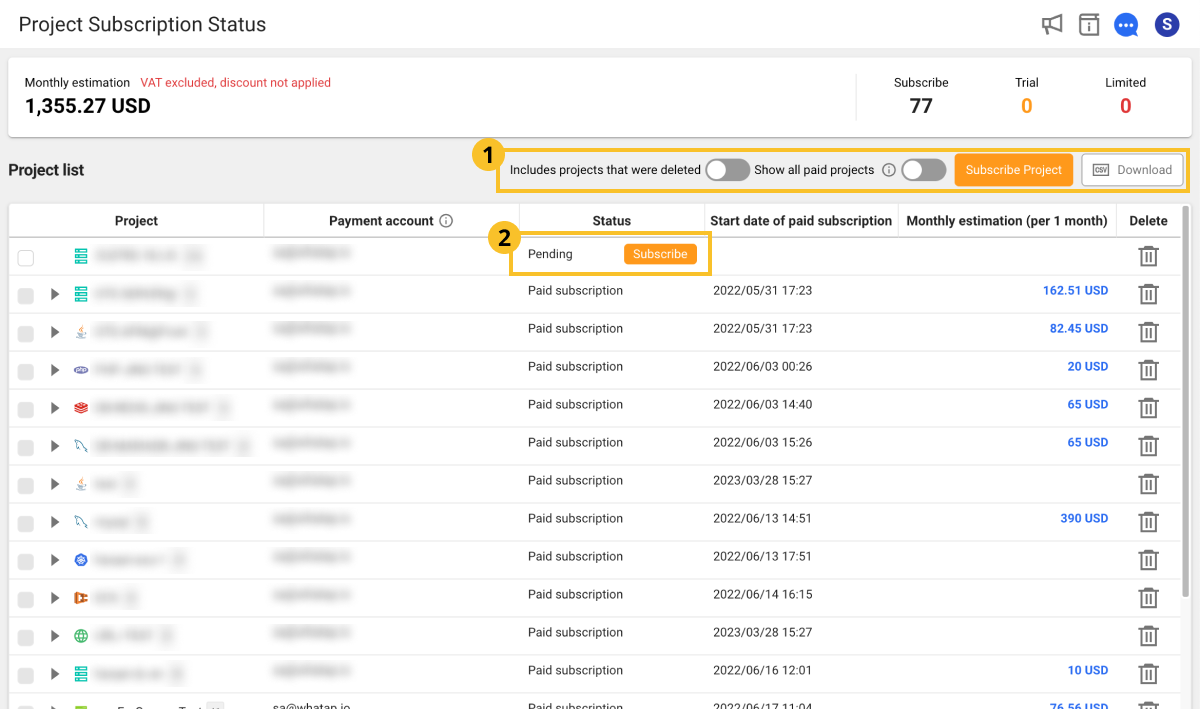
At the top of the screen, you can check the estimated monthly cost (tax excluded, discounts not applied), and the number of paid, trial, and restricted projects.
Subscribing to a paid plan
The Subscribe button is activated when the project status is Free, Trial, or Restricted.
Individual subscription
Click the Subscribe button for each project item to individually convert that project to a paid plan.
Batch subscription
To convert multiple projects to paid plans at once, follow these steps.
-
In the project list, select the checkboxes of the projects to convert to paid plans.
-
Click the Subscribe button at the top of the list.
-
When the Subscribe window appears, check the project list and then click the Confirm button.
Managing the project list
-
Show deleted projects: To include deleted projects in the list, enable the toggle button.
-
Show all paid projects: To view all paid projects including those you do not have Billing permissions for, enable the toggle button.
-
To download the project list as a CSV file, click the CSV button.
-
With Billing permissions, you can convert to paid plans, register payment methods, and receive invoices.
-
For projects converted to paid plans less than 7 days ago, you can cancel the subscription. Click the Cancel subscription button.
-
For projects that have been paid for more than 7 days, you can delete them by clicking the Delete project button.
-
The Copy column displays the average quantity for calculating billing for products excluding Log and Browser.
-
For Log products, the monthly total log units are displayed.
-
For Browser/Session Replay products, the monthly total session count is displayed.
-