Group Management
In the Group Management menu, you can manage devices in a  Site →
  Building →
  Floor hierarchy. Organizing devices by group makes management and monitoring more convenient in large-scale network environments.
Basic screen and settings
-
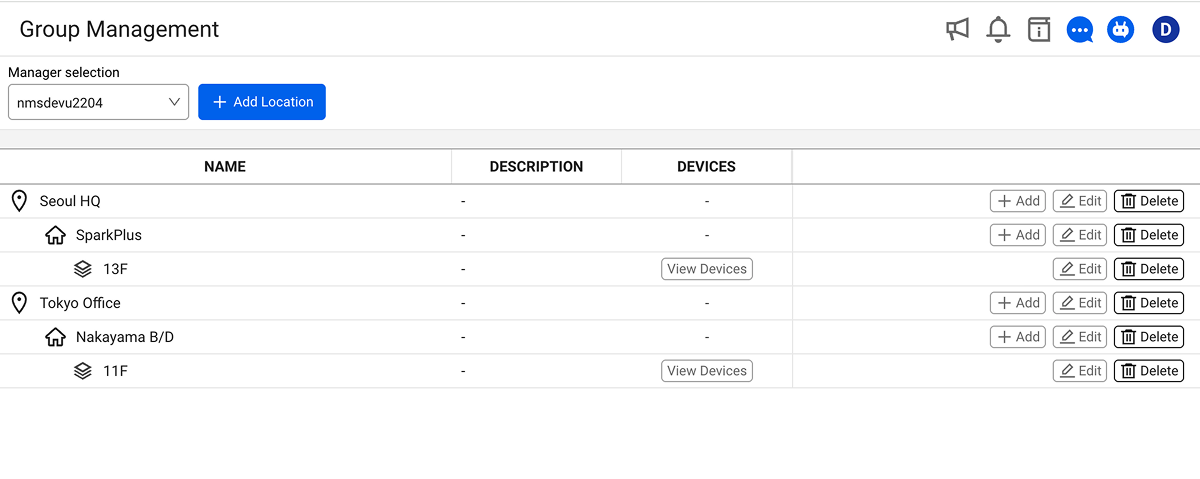
At the top of the Group management screen, select the manager you want to manage groups for in Select Manager. The group list is displayed based on the selected manager.
-
You can view, add, and delete the group list displayed based on the selected manager. Groups are displayed in a tree structure of
Site → Building → Floor.Table | Group listColumn Description Name Group name (location/building/floor) Description Group description Devices View devices included in the group Actions Add/edit/delete group
Adding a group
Adding a Location
-
Click the + Add Location button at the top of the screen.
-
In the Add Location dialog, enter a name and type.
-
Click the Save button to create a new Location.
Adding a Building
-
Click the + Add button for the Location where you want to add a Building.
- You can also click the + Add Location button at the top of the screen to add one.
-
In the Add building dialog, enter a name.
-
Click the Save button to create a new Building.
Adding a Floor
-
Click the + Add button for the Building where you want to add a Floor.
- You can also click the + Add Location button at the top of the screen to add one.
-
In the Add floor dialog, enter a name.
-
Click the Save button to create a new Floor.
-
Click the View Devices button to check assigned devices.
Editing a group
-
Click the
 Edit button for the group you want to modify.
 -
Change the group name or description.
-
Click the Save button to apply the changes.
Deleting a group
-
Click the
 Delete button to the right of the group you want to delete.
 -
In the delete confirmation popup, click Delete to remove the group.
Device assignment
When you click the View Devices button for a Floor in the group management list, the device assignment window opens.
Adding/deleting devices
-
Click the + Add button to select an unassigned device and it will be immediately assigned.
-
Click the
 icon to unassign individual devices.
Bulk edit
You can manage multiple devices at once.
-
Click the View Devices button for a Floor to open the device assignment window.
-
Click the
Edit button to go to the bulk edit window.Panel Description Unassigned (left) List of unassigned devices; click + to assign Assigned (right) List of assigned devices; click - to unassign -
In the bulk edit screen, click the Save button to save changes.