Log personal information de-identification
Personal information de-identification
In De-identification of personal information, you can mask personal information in log data or replace it with safe values.
-
Encryption: Specified sensitive data is encrypted and stored in the database.
-
Masking: When displayed on the log screen, sensitive data is masked (
***) by default. -
Substitution: Sensitive data is replaced with a user-specified value that is safe.
Personal information classification
The items classified as personal information are as follows: If there are any items that need to be treated as sensitive data in addition to personal information, mask or replace the desired items in the log data by using the De-identification of personal information feature.
- National ID number
-
Passport number
-
Driver's license number
-
Foreigner registration number
-
Credit card number
-
Bank account number
-
Biometric information
Required roles
De-identified personal information is displayed as masked. Only users with the log personal information query role can view original data through the Display personal information toggle. Adding or modifying de-identification target search keys requires the log editing role.
For more information about the log personal information query and log editing roles, see the following.
Setting the personal information de-identification
You can protect sensitive information by applying masking to new log data.
-
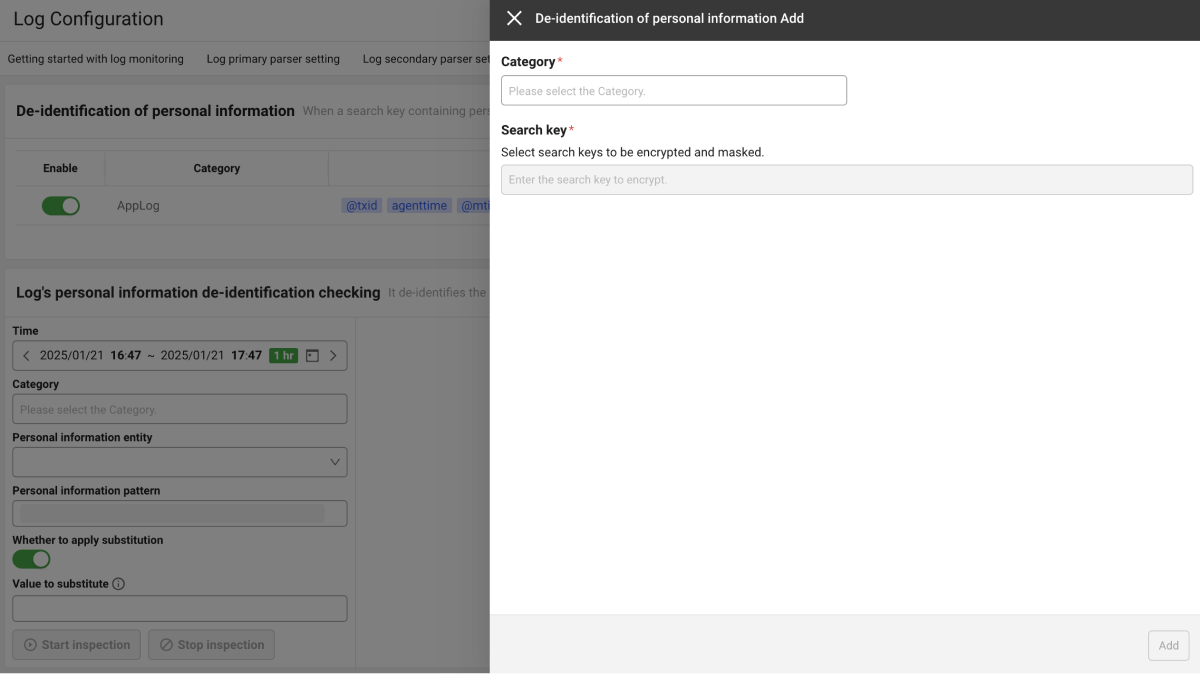
In the De-identification of personal information tab, select Add.
-
In the De-identification of personal information Add pane on the right, select Category and enter the Search key to mask.
-
Click Add to add the setting.
-
After checking the de-identified items in the De-identification of personal information list, click Save on the upper right to save the current settings.

-
The de-identified search keys are output in the format of
search key.piiin the log content. -
You can perform
 Enable for de-identified items in the Enable column of the De-identification of personal information list.
 -
You can
 modify and
  remove in the edit column of the De-identification of personal information list.
-
If the search key name is specified as search-key.p in the Log primary parser setting tab, it is automatically registered as a de-identification target. You can check or disable auto-registered items in Specified search key after selecting the Category in the De-identification of personal information tab.
We recommend configuring de-identification directly in the De-identification of personal information tab rather than using the .p suffix in parser settings.
Personal information display
De-identified data is displayed as masked in the Live Tail, Log Trend, and Log Search menus. Users with the log personal information query role can click the Display personal information button in the log list to view the original data.
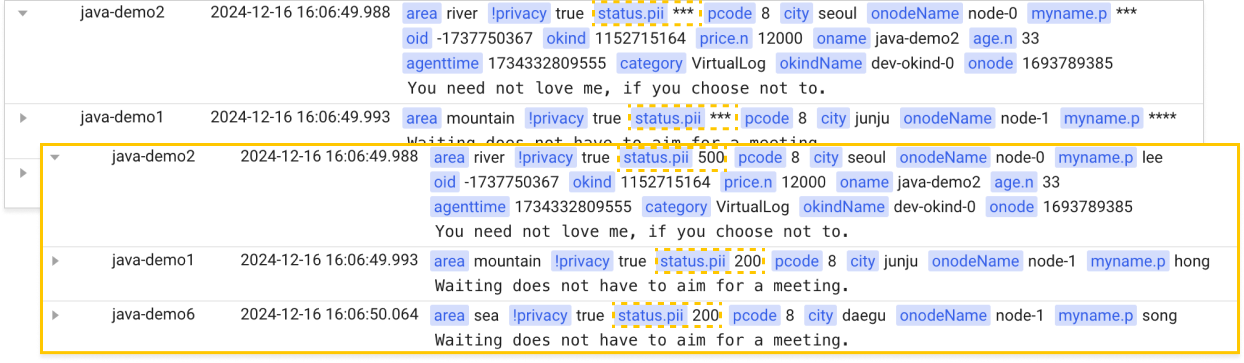
The search key specified in the De-identification of personal information tab appears in the log content of the Log menu in the format of Search key.pii.
Example of status.pii***
Checking the log's personal information de-identification
If you replace the existing data using the Log's personal information de-identification checking feature, the data cannot be recovered.
Log's personal information de-identification checking identifies personal information in existing log data and replaces it with the Value to substitute specified by the user.
Replacement by target key
If you specify a target key, only the value stored in that key is replaced, and the rest of the log content is kept as is. The target key applies to both the field value and the tag value of a log. If you do not specify a target key, personal information is identified and replaced across the entire log content, the same as before.
Replacement applies only to the stored log data. The original value may remain in the search index even after replacement.
You specify the target key in the Target key input field of the log personal information de-identification check form. On the screen, field and tag are not distinguished and are entered as a single target key.
-
Specify the start time and end time.
-
Set values for Category .
-
Select Personal information entity from the examples or Direct Input.
NoteWhen selecting Direct Input, directly enter a regular expression pattern to identify personal information.
-
Select whether to replace personal information, if it is identified via the Whether to apply substitution toggle.
-
Enter Value to substitute to change the string identified by the regular expression pattern in the existing log.
Note-
Value to substitute must not be longer than the original value.
-
When enabling the Whether to apply substitution toggle, be sure to enter Value to substitute.
-
-
Enter the conditions and then select Start inspection.
NoteYou can stop this step at any time by clicking Stop inspection during the checkup.
-
When applying substitution, enter Replace in the Start of inspection for personal information de-identification confirmation window, and then click the OK button.

-
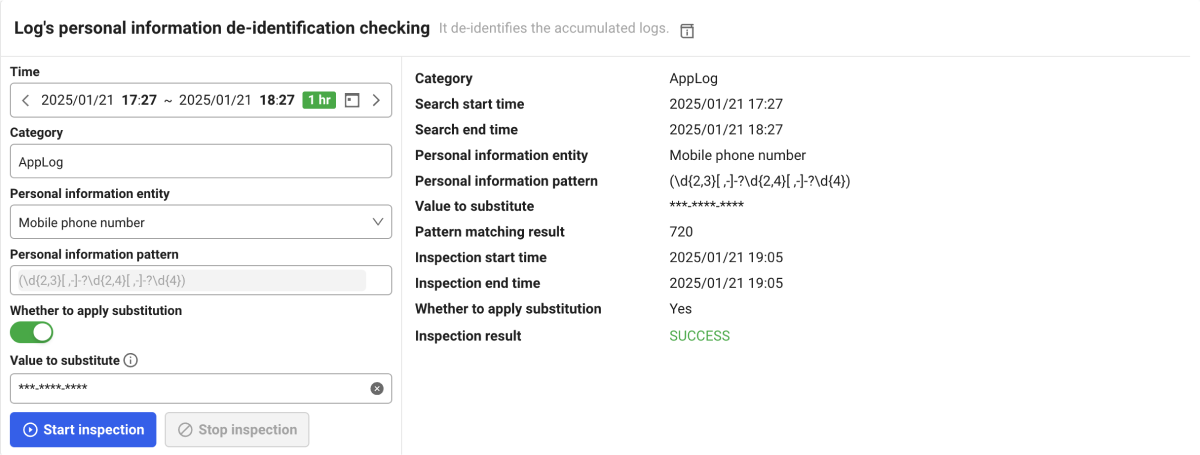
After the inspection is finished, you can see Inspection result on the right as in the example image.
-
Category: It displays the categories checked.
-
Search start time and Search end time: It displays the time range for the checkup.
-
Personal information entity: It displays the personal items that have been checked.
-
Personal information pattern: It displays the regular expression pattern used.
-
Value to substitute: It displays the applied replacement value.
-
Pattern matching result: The number of personal data identified is displayed. You can check the sample logs by clicking Check results.
-
Inspection result: It displays the result where personal information has been identified.
SUCCESS(check success),FAILED(check failure),STOP(check stop),TIMED_OUT(check ended due to timeout)
-
Check inspection history
To view the results of past checks after performing de-identification check for the log's personal information, click the Check inspection history button at the upper right. You can trace the substitution history, inspection time, and applied personal information items. You can also download the list information in CSV file format by clicking the  CSV button at the upper right of the Check inspection history window.

Personal information pattern
Examples of regular expression patterns used to identify personal information in the existing log are as follows:
| Personal information pattern | Personal information example | Regular expression pattern | Replacement value |
|---|---|---|---|
| National ID number | 123456-1234567 | (?<!w)d{2}(0[1-9]|1[0-2])([0-2][0-9]|3[0-1])-[1-4]d{6}(?!w) | ******-******* |
| Passport number | M1234567 | ([MSRODTC][0-9]{7}\b) | ******** |
| Driver's license number | 01-23-456789-00 | (?<!w)d{2}-d{2}-d{6}-d{2}(?!w) | **-**-******-** |
| Foreigner registration number | 987654-1234567 | (?<!w)d{6}-?[5-8]d{6}(?!w) | ******-******* |
| Credit card number | 1234-5678-9012-3456 | (?<!w)d{4}-d{4}-d{4}-d{4}(?!w) | ****-****-****-**** |
| Mobile phone number | 010-1234-5678 | (?<!w)(+82-?1[016789]-?d{3,4}-?d{4}|01[016789]-?d{3,4}-?d{4})(?!w) | ***-****-**** |
| Email address | example@domain.com | ([a-zA-Z0-9][a-zA-Z0-9._%+-]*@[a-zA-Z0-9.-]+.[a-zA-Z]{2,}) | ***@***.*** |
| Bank account number | 123456-01-654321 | (?<!w)d{6}-d{2}-d{6}(?!w) | ******-**-****** |
| Business registration number | 111-11-01111 | (?<!w)d{3}-d{2}-d{5}(?!w) | ***-**-***** |
| Corporate registration number | 111111-1111111 | (?<!w)d{6}-?d{7}(?!w) | ******-******* |