Syslog configuration
Home > Select Project > CONF. > Syslog Setting
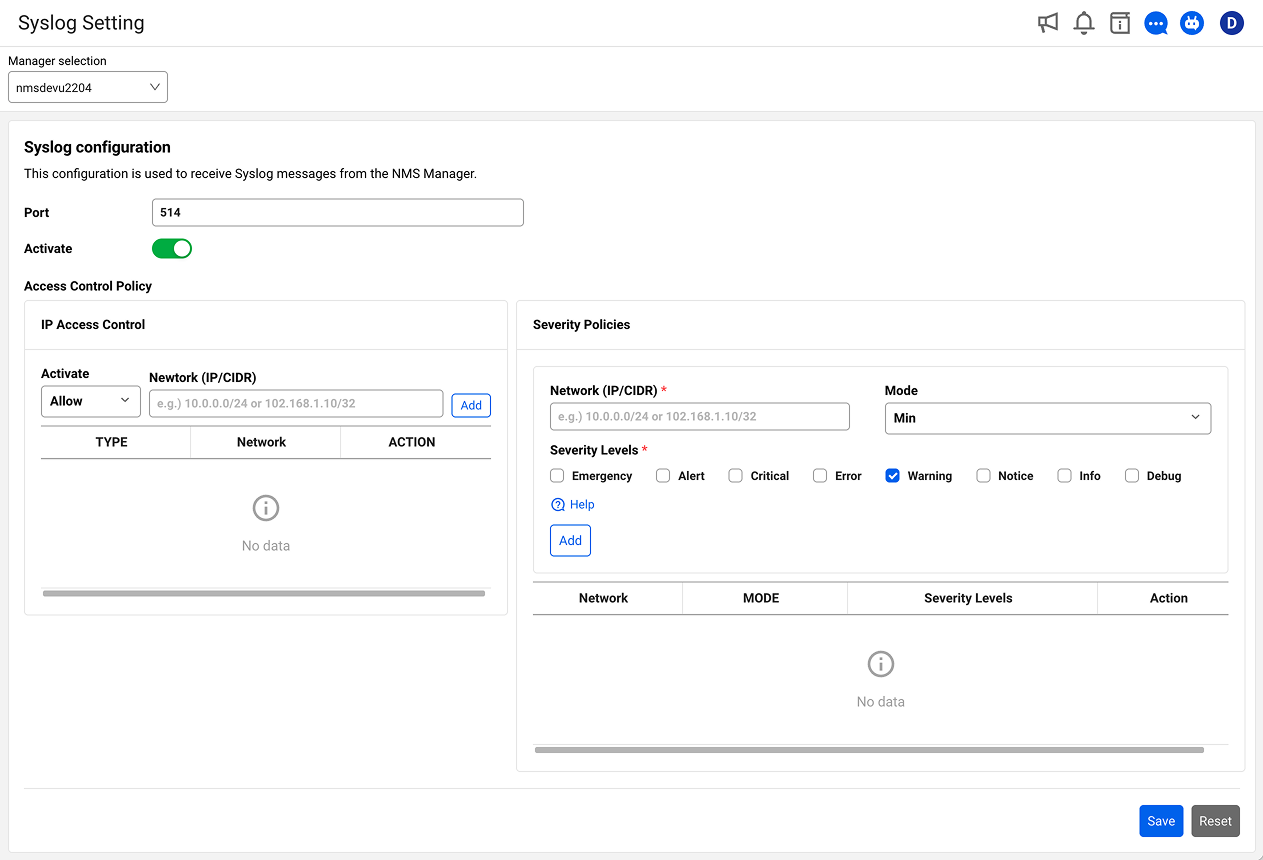
In Syslog Setting, configure the settings required to receive Syslog messages from network devices. Manage the reception port, IP access control, and Severity-based policies.
Basic screen and settings
-
At the top of the Syslog Setting screen, select the manager to apply the settings to.
-
Configure the settings in the Syslog Setting area. For details, see Syslog settings.
-
Click the Save button at the bottom right of the screen to save the changed settings. The button is disabled if there are invalid values.
- Click the Reset button to cancel changes and revert to the previously saved values.
Validation
The Port field is required.
-
The Network value in IP Access Control must be in valid IP/CIDR format.
-
The Network value in Severity Policies must be in valid IP/CIDR format.
Syslog Setting
Configure settings for the NMS manager to receive Syslog messages.
Port
Enable the port specified on the NMS to collect Syslog messages generated from devices.
- Default Syslog reception port:
514
Activate
Select whether to enable or disable Syslog reception using the  activation toggle button.
Access Control Policy
Configure IP access control and Severity policies.
IP Access Control
-
In the IP Access Control area, select Activate and enter the Network (IP/CIDR).
-
Behavior rules
-
allow rule: Allow Syslog reception from the specified network
-
deny rule: Block Syslog reception from the specified network
-
If no rules are set, reception is allowed from all IPs
-
-
-
Click the Add button.
-
You can verify the registered IP in the list.
Item Description Type allow or deny Network IP address or CIDR notation (e.g., 10.0.0.0/8) 
Delete the rule -
Click the Save button at the bottom right of the screen to save the Syslog settings.
Severity Policies
Configure processing policies by Syslog Severity level.
-
In the Severity Policies area, enter the Network (IP/CIDR) and select the Mode and Severity Levels.
-
Policy Mode
Mode Description allow Receive only the specified Severity levels deny Receive all except the specified Severity levels min Receive only levels at or above the specified Severity (equal or smaller number) -
Severity levels (RFC 5424)
A smaller Severity number indicates higher severity.
Level Code Description Emergency 0 System is unusable Alert 1 Immediate action required Critical 2 Critical condition Error 3 Error condition Warning 4 Warning condition Notice 5 Normal but significant condition Informational 6 Informational message Debug 7 Debug message
-
-
Click the Add button.
-
You can verify the registered Severity policies in the list.
Item Description Network Target network (* = all) Mode Policy mode (allow, deny, min) Severity Levels Severity levels to apply Delete the rule -
Click the Save button at the bottom right of the screen to save the Syslog settings.
Features planned for future support
The following features are scheduled to be supported in future updates. The timing and details are subject to change.
-
TCP protocol: Receive Syslog over TCP
-
TLS encryption: Receive TLS-encrypted Syslog
-
Facility filter: Filter by Syslog Facility
-
Parsing rules: Parse custom Syslog messages