Sharing the Flex board
In Integrated Flex Board, you can share a created dashboard with other members or copy it for reuse.
Differences between sharing and copying
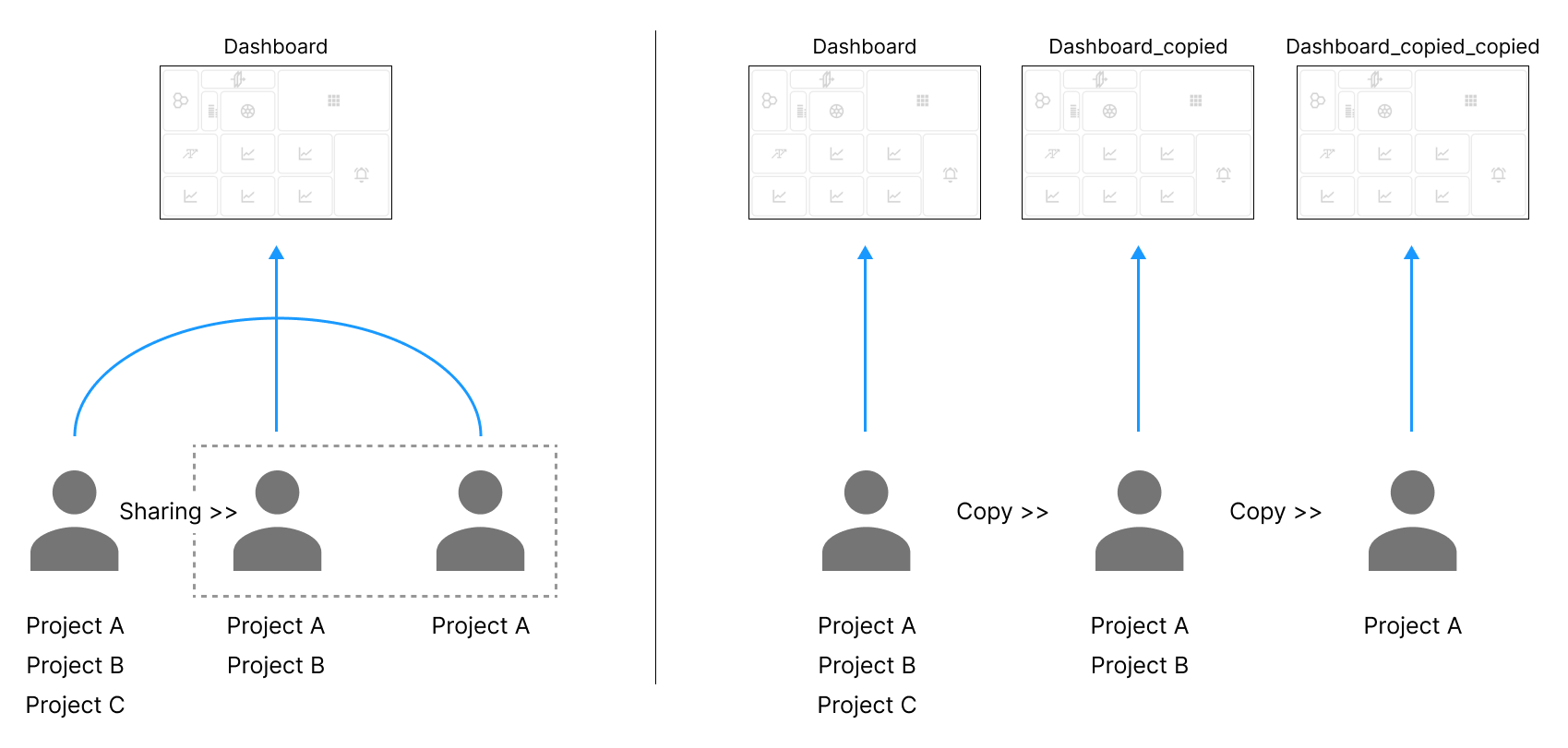
-
If you share a dashboard, all shared members can see the dashboard.
-
If you copy a dashboard to another member or yourself, you can see the separate copied dashboard.
-
Members who have a shared or copied dashboard with Read only mode cannot edit the dashboard, but can edit a dashboard shared or copied with Edit Mode
-
The shared members for the dashboard with Read only can share the dashboard as read-only and can copy it.
-
You can share any dashboard with the members invited to one or more projects that are included in the dashboard. Check that the members to be shared or copied belong to the project.

Dashboard sharing and copying features are updated
In the past, the members to be shared or copied had to have the Edit role, but since Service 2.3.0 release, as long as they belong to the project regardless of role, they can copy or share a dashboard. However, among the projects in the shared dashboard, the data cannot be viewed because they do not have the Analysis view role. For more information about member roles, see the following.
Sharing the Flex board
You can see the same dashboard by sharing the created Flex board with other users. This allows users to share a project. If you have modified the shared dashboard, the other users can see the same dashboard.
This feature can be used only in Integrated Flex Board. It cannot be used in the Flex board menu of the project.
-
Select
 of the dashboard you want to share from Dashboard list in Integrated Flex Board.
 -
When the Sharing a dashboard window appears, click the input field to select members to share with or directly enter the account.
-
You can add multiple members at once to share your dashboard with.
-
If you select Read only, the shared members cannot modify the dashboard.
-
You can share any dashboard with the members invited to one or more projects that are included in the dashboard. Check that the members to be shared or copied belong to the project.
-
-
Select Share.
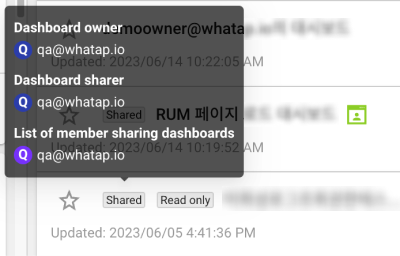
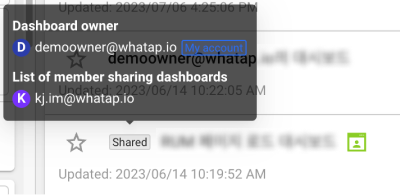
You can see that the Shared tag is displayed in Dashboard list for the shared items. If you hover your mouse over the Shared tag, you can see the information about the shared members. The members shared as read-only see the Read only tag.
| In case the dashboard has been shared by the owner | In case the owner shared the dashboard |
|---|---|
|
|
Dash board shared conditions
-
The dashboard sharing is available only in Home > Integrated Flex Board.
-
Members can share their own dashboard, and the shared dashboards can be reshared or copied.
-
Members who have a shared or copied dashboard with Read only mode cannot edit the dashboard, but can edit a dashboard shared with Edit Mode
-
When a dashboard owner deletes the shared dashboard, the dashboard is deleted from all user accounts.
-
When a user who has a shared dashboard deletes the dashboard, it is deleted only from the member's Dashboard list. The original dashboard remains intact.
-
Among the projects on the shared dashboard, you cannot view the data for the projects with no View role.
Copy a Flex board
Users can copy a Flex board and send it to other members.
-
In Integrated Flex Board under Dashboard list, click the
 icon.
icon. -
Choose a copy option.
-
Copy to me: copy to your own account.
a. An item with the
_copiedsuffix is added to Dashboard list. -
Copy to others: copy to another member's account.
a. Click
 Account.
b. Select the email of the member to copy to and click the Copy dashboard button.
c. An item with the
Account.
b. Select the email of the member to copy to and click the Copy dashboard button.
c. An item with the _copiedsuffix is added to that member's Dashboard list.
-
Share as a JSON file
You can export Flex board settings to a JSON file to share with other members, or import settings from other members.
Export
-
Go to Integrated Flex Board or a project's Flex board menu.
-
In Dashboard list, click the
 button.
 -
Choose an export option.
-
Include Project Information: include dashboard project information in the JSON file when sharing.
-
Except Project Information: share without including dashboard project information in the JSON file.
-
-
Download the JSON file and send it to the member you want to share with.
Import
-
Go to Integrated Flex Board or a project's Flex board menu.
-
Click the
 Import button at the top right.
 -
Select the downloaded JSON file.
Only members with Edit permission for the project can use this feature.