Database Parameter
Home > Select Project > Analysis > Database Parameter
Using the database configuration inquiry, you can view the database settings of the past. You can compare parameter values in the database by date through the comparison function. By default, you can see the data of the current time.
If a problem occurs due to a parameter in the database, the cause can be quickly recognized through the database parameter comparison function.
In a SingleStore project, you can select Cluster or Date in Comparison method at the top of the screen. Cluster is selected when the screen opens.
- Cluster: Compare parameter values of the nodes in one cluster side by side. Use it to find parameters whose values differ between nodes.
- Date: Compare parameter values on two dates, the same way as for other databases. See Date compare.
Cluster compare
-
Select Cluster in Comparison method.
-
Select a date in Reference. Parameters are collected once a day, and the values collected on the selected date are shown.
-
Select the cluster to compare from the Cluster dropdown. Clusters are listed in name order, and the first cluster is selected initially. Results appear immediately without clicking the search button.
The result table shows the Parameter and Scope columns and a column for each node. Node columns are listed in MA, CA, Leaf order, and each column header shows the node name and role tag.
Scope indicates which nodes must have the same parameter value. Whether values match is judged based on this scope.
| Scope | Nodes that must have the same value |
|---|---|
| All nodes | All nodes in the cluster |
| Aggregators | Aggregators (MA, CA) |
| Local | None. Not compared even if values differ by node |
There are three results.
- Synced: All nodes that must have the same value have the same value.
- Drift: Nodes that must have the same value have different values. The parameter name appears in bold warning color, and cells that differ from the value held by the most nodes are highlighted in orange.
- By node: A Local parameter. Not compared.
Nodes that did not send a value show — and are excluded from the result. For Aggregators parameters, Leaf node values are not compared and appear dimmed.
View mismatches only
- Click View mismatches only to show only parameters whose values differ between nodes. Any parameter with differing values is shown regardless of Scope, so Local parameters are included.
- The Scope chips above the table show the parameter count and Drift count for each scope. Click a chip to show only the parameters in that scope. You can select multiple chips.
- At the top right of the table, check the last collection time, download a CSV, or find parameters with Key search.
View parameter details
Click a parameter row in the table to open the detail drawer.
| Area | Content |
|---|---|
| Application range | Range of same value (All nodes in the cluster, Aggregator (MA, CA), None (per node)) and Judgment |
| Node-specific value | Role, value, and comparison inclusion for each node (Includes, Exclude — Not a propagation target, No comparison) |
| Change history | Times and values of value changes over the last 30 days |
Date compare
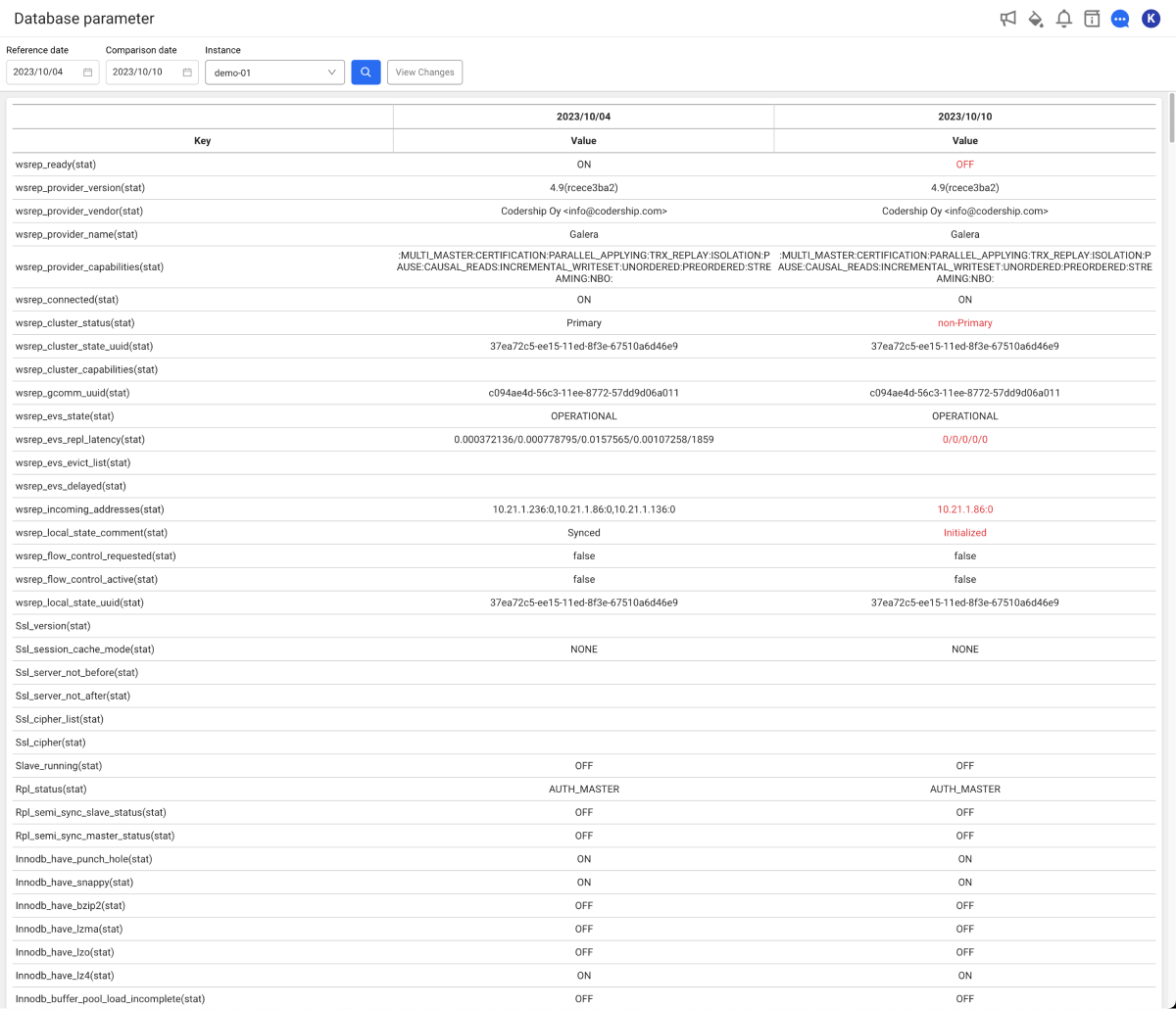
Select Date in Comparison method to compare parameter values on two dates using the steps below. Date compare results also show the Scope column and Scope chips.
-
Set values for Reference date and Comparison date.
-
Select a desired instance in Instance.
-
Click
 .
To check the changes between the current time and the selected past date at a glance, select View Changes.
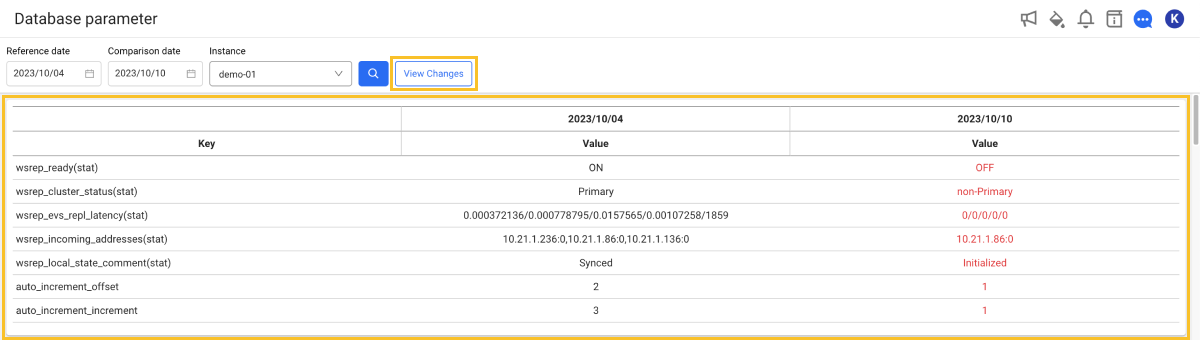
Comparing database parameters for today

If you set both Reference date and Comparison date to the date for today, you can view and compare the real-time data and the last saved data. The storage time of the last data may differr depending on the database server environment.