Agent Installation
The following guides you to the basic installation method for using the WhaTap database monitoring service.
Checking the configuration diagram
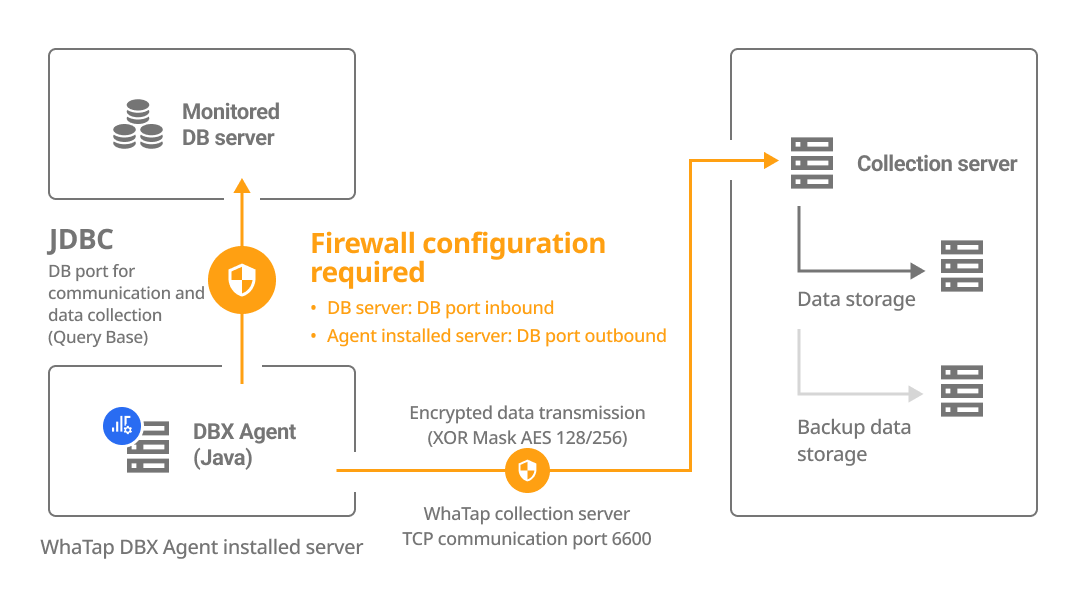
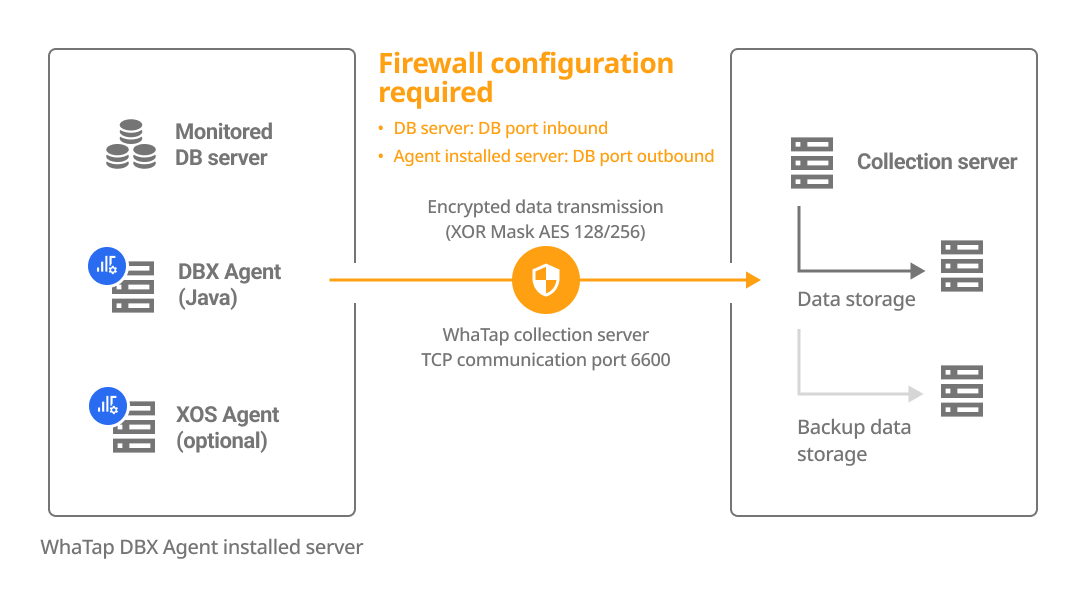
The DBX agent can be installed on a separate server or on the DB server. Select a method how to install the agent and check its configuration and firewall.
| Install on a separate server | Install on the DB server |
|---|---|
|
|
Account creation
In SAP ASE, you must create a separate user account in the database, and then add the login account and grant roles.
-
Create a login account.
sp_addlogin '{login}','{Password}'
go -
Register the created login account as a database user.
use {db}
go
sp_adduser '{login}','{user}'
go -
Grant users the required roles depending on the functionality and environment.
--Default monitoring permissions
grant role mon_role to {login}
go

--kill session permission
grant role sa_role to {login}
go -
Set the parameters required to enable the monitoring.
sp_configure 'enable monitoring', 1
sp_configure 'wait event timing', 1
sp_configure 'SQL batch capture', 1
sp_configure 'per object statistics active', 1
sp_configure 'statement statistics active', 1
sp_configure 'object lockwait timing', 1
If you have an account with roles, skip this step and then proceed to Next Step.
-
In the example code,
loginis the user authentication information to connect to the database server.useris the user account to use for a specific database. Change it to the desired user account name. -
Enter your password in
Passwordin the example code.
In case the sql text does not appear
Changes are not reflected immediately and the agent restart is required.
```sql
sp_configure 'max SQL text monitored', 1024
```
Downloading the DBX agent
Download the DBX agent file. Use the following two methods.
-
You can download it by using the 'wget' command.
BASHwget -O whatap.agent.database.tar.gz "https://service.whatap.io/download/dbx_agent?type=sap_ase&format=tar.gz" -
If you cannot download it with the command, select Download on the WhaTap monitoring service screen.
Download the DBX agent file and then unzip it.
tar -zxvf whatap.agent.database.tar.gz
For users who cannot download tar files due to security settings, ZIP files are also provided. On the installation screen, select the .zip Download button.
DBX Agent Setting
Follow the instructions on the agent installation screen to configure the agent. By entering the required items on the screen, the configuration and commands can be auto-completed.
whatap.conf configuration
Go to the unzipped folder and then check the whatap.conf file. In whatap.conf, enter the project access key, WhaTap server data, and DB connection data.
license={AccessKey}
whatap.server.host=13.124.11.223/13.209.172.35 # WhaTap server information

dbms=sap_ase
db={DB}
db_ip={DB_Server_IP}
db_port={DB_Server_Port}
Downloading JDBC
Copy the jconn3.jar file from the jConnect-6_0/classes path on the DB server, and then place it in the /agent_installation_path/jdbc folder.
/unzipped folder/jdbc
Creating DB users and changing passwords
Generate an encrypted UID for database connection. Enter the username and password and then run the shell script (or batch file).
When changing the password, enter the new password and follow the same procedure.
- Linux
- Windows
./uid.sh {login} {password}
-
After setting it once, it collects data from the database server to be monitored through the encrypted UID.
-
To create a DB user file, enter the project access key in the whatap.conf file. Checking the access key
-
In the Azure database environment, enter
loginin the form of DB_USER@DB_name. -
If special characters are included in
loginorpassword, enter the escape character (\) together before any special characters.Example./uid.sh whatap whatap\!pwd
# If there are multiple special characters, add the escape character(\) for each.
./uid.sh whatap whatap\!\@pwd
uid.bat "LOGIN" "PASSWORD"
-
After setting it once, it collects data from the database server to be monitored through the encrypted UID.
-
To create a DB user file, enter the project access key in the whatap.conf file. Checking the access key
-
In the Azure database environment, enter
LOGINin the form of DB_USER@DB_name. -
On Windows, the escape character (
\) is not required for special characters in a password. However, it is required when using double quotes (") within the password.
Starting the monitoring
Execute a shell script (or batch file) from the path where you have installed the agent.
- Linux
- Windows
./start.sh
To use it like a daemon, execute the following command. However, it works only in the environment where nohup has been installed.
./startd.sh
start.bat
Check whether there are any errors in the execution log displayed on the screen, and check whether a chart appears normally on the dashboard screen (Instance List). If there is no problem, press Ctrl+C to terminate the execution, and then register it as a Windows service in the following order.
Registering a service
Execute the following command to register a service.
install_WindowsService.bat create WhatapDBXAgent
When a service is registered, you can check it in the service management tools as shown below. Find the service, right-click it, and then select the Start option to start the service.
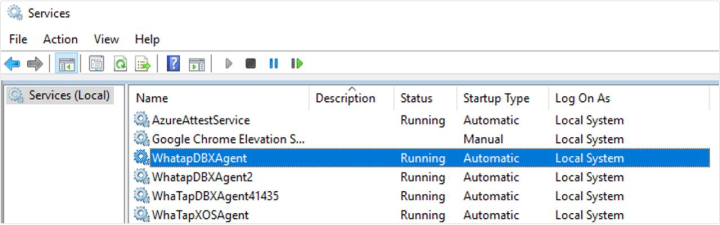
In Control Panel > Windows Tools > Services (services.msc), you can start or stop the WhatapDBXAgent service. Depending on the Windows version, the service path may differ.
Deleting a service
Execute the following command to delete a service.
install_WindowsService.bat delete WhatapDBXAgent
You completed installing the agent for database monitoring. In the following, check the post-installation checklist.
Installing the additional agent (XOS) and applying other options
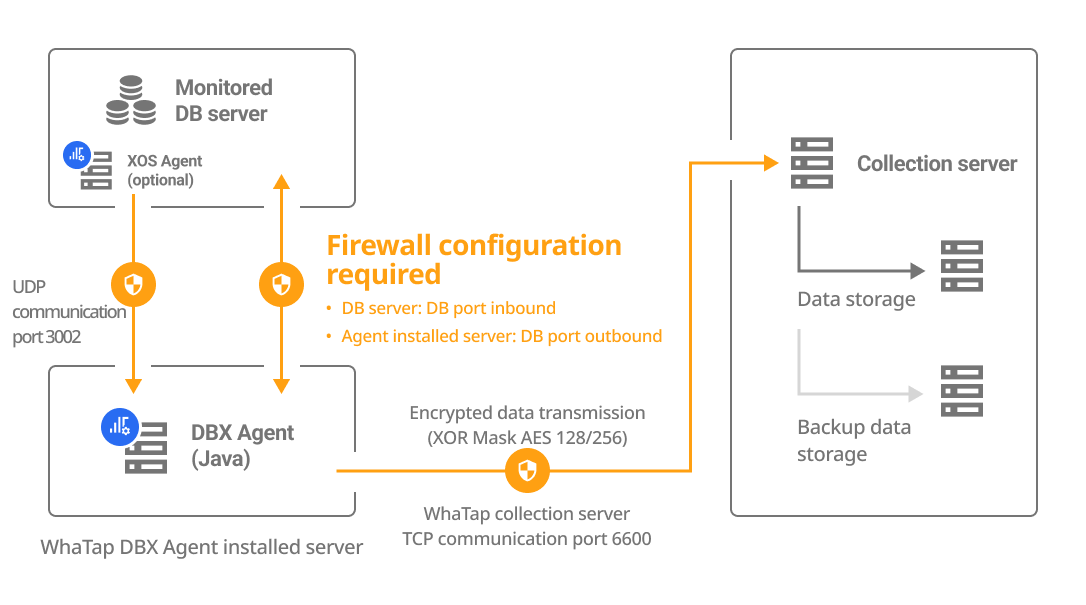
To additionally monitor the resources of the database server, run a separate XOS agent process on the database server to collect data.
-
It can be applied to only the OS environment running on the x86 architecture.
-
The additional agent installation process is optional.
- For more information about the XOS agent configuration options, see the following.
Configuring the whatap.conf file
Set the following options in the whatap.conf file in the path where the DBX agent has been installed.
xos=1
xos_port=3002
Move the xos folder (/unzip folder/xos/) to the database server.
Configuring the xos.conf file
Set the following options in the xos.conf file in the xos path moved to the database server.
dbx_ip={DB_Agent_IP}
dbx_port=3002 # default 3002
cpu_limit=0
mem_limit=10240
In Agent Installation, when you enter the DB data to DB Agent IP and DB Agent Port, the agent options are automatically generated.
Running the XOS agent
- Linux
- Windows
Run the XOS agent.
./start.sh
-
To transmit monitored data to the DBX agent, the port set to
dbx_port(default 3002) must have been open. (UDP Outbound) -
To run the XOS agent in the background, run the ./startd.sh file.
Run the agent with a batch file in the xos folder.
start.bat
After confirming that there are no errors in the execution log displayed on the screen and terminating the execution, register for the service in the following order.
-
Service registration
Register in the service by running the install_WindowsService.bat file in the xos folder as follows. If you do not enter a name after the
createoption, the service is registered by default with the name of WhatapXOSAgent.install_WindowsService.bat create WhatapXOSAgent -
Deletion of a service
install_WindowsService.bat delete WhatapXOSAgent
To transmit monitored data to the DBX agent, the port set to dbx_port (default 3002) must have been open. (UDP Outbound)
Next steps
-
Checking the installation
If you have created a project, installed an agent, and applied all agent options, see the checklist in the following.
-
Installation troubleshooting
It provides various problems that may occur when installing the agent and specific instructions for resolving them. For more information, see the following.
-
Agent setting
It provides various features for monitoring by applying some options to the agent configuration file (whatap.conf). For more information, see the following.
To additionally monitor the database server resources, set more options in the additional agent (XOS). For more information, see the following.
-
Starting the monitoring
After configuring all settings, the agent starts collecting metrics data from the database server. First, check whether the monitoring data has been collected in Instance List. For more information about Instance List, see the following.