Event Configuration
Home screen > Select project
Alert > Event Configuration
In Event setting, you can configure and manage events based on anomaly conditions that may occur in monitored systems or applications. When the configured conditions are met, notifications can be delivered through your preferred channels such as email, SMS, messengers, or app push notifications. You can tailor event configurations according to your monitoring objectives.
Home Screen > Select Project >
Event setting provides features to configure and manage events based on anomaly signals that may occur in monitored systems or applications. When configured conditions are met, you can receive notifications through your preferred channels such as email, SMS, messengers, or app push notifications. You can design event configurations according to your monitoring objectives.
Reference
-
When configuring events, use appropriate threshold values to prevent unnecessary event generation.
-
When setting up notifications, consider enabling recovery notifications (alerts sent when issues are resolved) to support effective operational response.
Tab Structure
The Event Settings screen is organized into tabs by event type. The tabs available may differ by product.
| Tab | Description |
|---|---|
| Metrics | Configure events using threshold conditions on collected metrics |
| Composite Metrics | Configure events by combining multiple metrics with MXQL |
| Hitmap Pattern | Automatically detect abnormal patterns in the hitmap |
| Anomaly Detection | Detect values that fall outside the learned normal range |
| Real-time Log | Configure events using log search keys and search values |
| Composite Log | Configure events by combining log templates and rules |
| Transaction | Configure transaction events using elapsed time, error, and pattern conditions |
Basic events are consolidated into the Metrics tab and managed together in a single tab.
Common Features
All event configurations can be downloaded in JSON or Excel format. By sharing the same type of product configuration, you can reduce repetitive event setup work.
-
Batch JSON Edit: Edit all event conditions in bulk using JSON format.
-
Batch JSON Download: Save all currently registered event conditions as a JSON file.
-
Batch Excel Download: Download the event list as an Excel file for external reporting or backup purposes.
Batch JSON Edit
-
Click the [ Batch JSON Edit ] button at the top of the screen.
-
Import a JSON file downloaded via the Batch JSON Download feature, or edit the content directly.
-
Click the [ Overwrite ] button to save.
-
When a confirmation message appears, click the [ Overwrite ] button.
After overwriting, you cannot restore the previous event configuration.
-
Arbitrarily modifying the values of the
productTypeorplatformproperties may cause events to malfunction in other projects. -
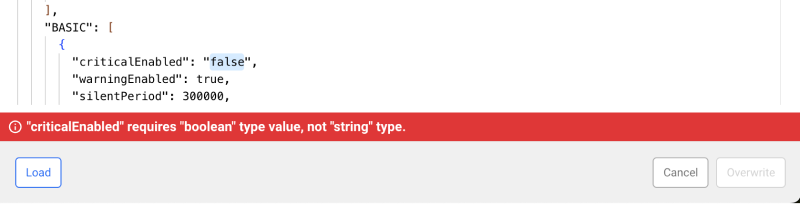
The JSON editor includes built-in validation. If the format or values are invalid, an error message appears below the editor and the [ Overwrite ] button is disabled.
JSON Data Structure
{
  "productType": "{productType}",
  "platform": "{platform}",
  "events": {
    "HITMAP": {
      ...
    },
    "LOG_REALTIME": [
      {...}
    ],
    "METRICS": [
      {...}
    ],
    "COMPOSITE_LOG": [
      {...}
    ],
    "BASIC": [
      {...}
    ],
    "COMPOSITE_METRICS": [
      {...}
    ],
    "ANOMALY": [
      {...}
    ]
  }
}
| JSON Field | Description |
|---|---|
| productType | Product type (e.g. APM, Infra) |
| platform | Platform information (e.g. java, node) |
| events | Event data |
| ㄴ HITMAP | Hitmap pattern |
| ㄴ LOG_REALTIME | Real-time log events |
| ㄴ METRICS | Metrics |
| ㄴ COMPOSITE_LOG | Composite log events |
| ㄴ BASIC | Basic events |
| ㄴ COMPOSITE_METRICS | Composite metrics |
| ㄴ ANOMALY | Anomaly detection |
Batch JSON Download
Click the [ Batch JSON Download ] button at the top of the screen.
-
The JSON file name follows the format integrated-event-
YYYYMMDD.json. -
The structure of the JSON data and the sub-properties under the
eventsattribute may vary depending on the product (platform) or product type (productType).
If you arbitrarily modify the values of the productType or platform properties in the JSON data, events may not function correctly in other projects.
Batch Excel Download
Click the [ Batch Excel Download ] button at the top of the screen.