Real-time Notifications
The Alert status feature displays pop-up notifications when events configured in Event Configuration occur. You can receive alerts immediately when an event is triggered, allowing you to quickly recognize issues and respond. You can also review notifications that have already occurred or were missed, helping you understand and resolve situations where real-time response was difficult.
Viewing Real-time Notifications
Real-time notifications appear as pop-ups in the upper-right corner of the screen. You can check the time, title, and message of each notification.
-
To close an individual notification, click the
 button in the upper-right corner of the message.
 -
To close all pop-up notifications displayed on the screen, click Close All Notifications.
Viewing Notification History
-
Click the
 icon at the top of the screen after selecting a project.
 -
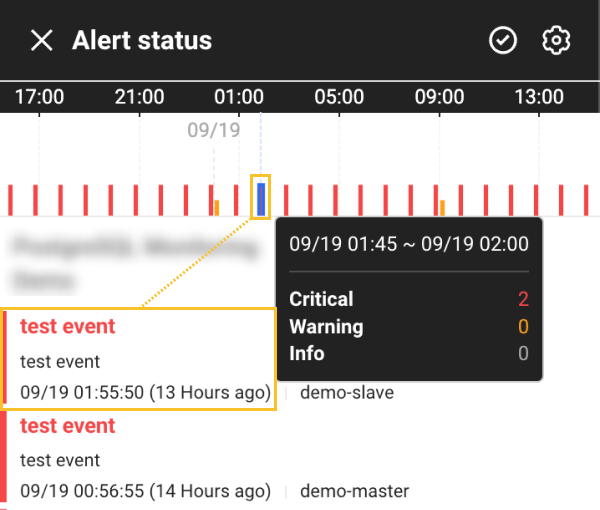
The Alert status window appears.
-
You can view up to 100 notifications from the past 24 hours for the current project.
-
Selecting an individual event item navigates you to the related menu.
-
In the time-based chart within the Alert status window, selecting a specific time range takes you to the corresponding event items.
-
To view the full notification history, click View All Notification History. This navigates to Alert > Event History.
NoteIf the Alert status list is empty, the View All Notification History button is displayed. Disable the Receive notifications without reception tags option.
-
Resolving Events in Bulk
You can resolve all ongoing events at once from the Alert status list. The bulk resolution process may take approximately 30 seconds to 1 minute to complete.
-
When using the Add Acknowledge feature, a large number of recovery (resolved) notifications may be generated for currently ongoing events.
-
Even after using the Add Acknowledge feature, events may occur again if the event rules remain enabled and the data still exceeds the threshold.
-
Recovery notifications can be disabled by editing the event in Alert > Event Configuration. Disable Send additional notification when the event is resolved or Recovered notification.
How to use:
-
Click the
icon at the top of the screen after selecting a project. -
When the Real-time Notifications window appears, click the
 icon in the upper-right corner.
 -
When the message
Resolve all ongoing events in the real-time notification list.appears, click the Resolve button.
Configuring Real-time Notifications
-
Click the
icon at the top of the screen after selecting a project. -
When the Alert status window appears, click the
 icon in the upper-right corner.
 -
Configure each option in the real-time notification settings window.
-
Popup notifications: Displays notifications as pop-ups even when the Alert status window is closed.
-
Show resolved events: Allows resolved events to be displayed in the Alert status list.
-
Preview notification sound: Lets you preview browser notification sounds. Click the
 button next to Critical or Warning. If you cannot hear the sound, check your browser settings.
-