Parsing the logs
The log parser helps you transform the irregular logs into a structured form. WhaTap Log Monitoring provides two types of parsers.
-
GROK parser: The logs collected in arbitrary forms are parsed using regular expressions and GROK syntax.
-
JSON parser: The logs collected in the JSON form are parsed.
Common precautions
-
If multiple parsers are registered in the same category, only the first matching parser is applied.
-
WhaTap has the role to disable the parsers that may affect the stability of the WhaTap service.
GROK parser
If the logs are collected in an irregular form, you can use the GROK parser to parse them. GROK syntax provides named regular expressions, allowing you to use regular expressions more easily.
Starting GROK
GROK provides two types of syntaxes.
-
%{SYNTAX:SEMANTIC}: Syntax provided in the GROK library. Using the named regular expressions, you can extract tags. For usage examples, see the following.-
SYNTAX: Specify the named regular expressions provided by GROK.
-
SEMANTIC: Specify the name for the matched value.
Notenamed regular expressions
The syntax is provided by GROK. This function provided by GROK allows you to assign names to complex regular expressions.
name regular expression WORD \b\w+\bSPACE \s*NOTSPACE \S+UUID [A-Fa-f0-9]{8}-(?:[A-Fa-f0-9]{4}-){3}[A-Fa-f0-9]{12}To see all named regular expressions provided by WhaTap, see the following link.
-
-
(?<SEMANTIC>REGX): The named capturing group syntax for regular expressions. You can use regular expressions to extract tags according to the user's intent. For usage examples, see the following.-
SEMANTIC: Specify the name for matched values.
-
REGX: Enter regular expressions for matching.
Notenamed capturing group
It is the syntax provided by regular expressions.
-
capturing group: This indicates the function to bundle multiple tokens into one as a single matching unit.
-
named capturing group: Name assigned to the capturing group.
-
Let's look at the string matching example. dev@whatap.io
- Example 1
(\w+)@(\w+\.\w+) - Example 2: When the entire email is matched and the username and domain are matched additionally,
(?<username>\w+)@(?<domain>\w+\.\w+)
- Example 1
-
%{SYNTAX:SEMANTIC} Usage example
The following is an example that uses the %{SYNTAX:SEMANTIC} syntax.
[2023-08-08 02:02:30,101 GMT][INFO ][i.w.y.l.c.LogSinkDexScheduleThread.realProcess(159)] 8 VirtualLog 20230808 02:01:00.000 {area=4, city=5} 56ms
You can look at the sample log to infer what each word means. When replacing each part with semantic words, it can be expressed as follows:
[date][logLevel][caller] projectCode logCategory dexBuildStartTime {area=areaEnum, city=cityEnum} dexBuildElapsed
Any semantic word can be replaced with a regular expression. The GROK parser allows you to use the predefined named regular expressions. TIMESTAMP_ISO8601, LOGLEVEL, and DATA used here are named regular expressions provided by GROK. These values are matched after replacing each of them with the following regular expression.
-
name:
TIMESTAMP_ISO8601- regular expression:
%{YEAR}-%{MONTHNUM}-%{MONTHDAY}[T ]%{HOUR}:?%{MINUTE}(?::?%{SECOND})?%{ISO8601_TIMEZONE}?
- regular expression:
-
name:
LOGLEVEL- regular expression:
LOGLEVEL ([Aa]lert|ALERT|[Tt]race|TRACE|[Dd]ebug|DEBUG|[Nn]otice|NOTICE|[Ii]nfo|INFO|[Ww]arn?(?:ing)?|WARN?(?:ING)?|[Ee]rr?(?:or)?|ERR?(?:OR)?|[Cc]rit?(?:ical)?|CRIT?(?:ICAL)?|[Ff]atal|FATAL|[Ss]evere|SEVERE|EMERG(?:ENCY)?|[Ee]merg(?:ency)?)
- regular expression:
-
name:
DATA- regular expression:
.*?
- regular expression:
\[%{TIMESTAMP_ISO8601:date}\sGMT\]\[%{LOGLEVEL:level}\s\]\[%{DATA:caller}\]
If you parse with the above syntax, you can extract tags as follows. In this way, GROK's %{SYNTAX:SEMANTIC} syntax helps you apply complex and long regular expressions easily and concisely.
- date : 2023-08-08 02:02:30,101
- caller : i.w.y.l.c.LogSinkDexScheduleThread.realProcess(159)
- level : LEVEL
(?<SEMANTIC>REGX) Usage example
The parts that do not match with the named regular expressions can be parsed using the (?<SEMANTIC>REGX) pattern. In the sample log above, the parts that cannot be parsed with the %{SYNTAX:SEMANTIC} syntax are as follows.
8 VirtualLog 20230808 02:01:00.000 {area=4, city=5} 56ms
When replacing each part of the log with semantic words, it can be expressed as follows.
projectCode logCategory dexBuildStartTime {area=areaEnum, city=cityEnum} dexBuildElapsed
These irregularly strings can be parsed using the (?<SEMANTIC>REGX) syntax.
Regular expressions that match for each sample log parsing keyword
| Parsing keyword | (?<SEMANTIC>REGX) |
|---|---|
| 8 | (?<projectCode>\d) |
| VirtualLog | (?<logCategory>\w*) |
| 20230808 02:01:00.000 | (?<dexBuildStartTime>\d{8}\s\d{2}:\d{2}:\d{2}\.\d{3}) |
| area=4 | area=(?<areaEnum>\d) |
| city=5 | city=(?<cityEnum>\d) |
| 56ms | (?<dexBuildElapsed>\d{2})ms |
Basic regular expression syntax
| Syntax rule | Meaning | Alias |
|---|---|---|
? | 0 or 1 | - |
+ | 1 or more | - |
* | 0 or more | - |
a{5} | exactly 5 | - |
\w | word character | [a-zA-Z_0-9] |
\s | white space | - |
. | any character except newline | |
[abc] | any of | - |
[^abc] | not a,b, or c | - |
[a-z] | character between a and z | - |
[1-3[7-9]] | union (combining two or more character classes) | - |
[1-6&&[3-9]] | intersection | - |
[0-9&&[^2468]] | subtraction | - |
a{2,} | 2 or more | - |
a{1,3} | between 1 and 3 | - |
a+? | match as few as possible | - |
{2,3}? | match as few as possible | - |
(abc) | capturing group (processes multiple strings as a single unit) | - |
\d | digit | [0-9] |
\D | non-digit | [^0-9] |
\W | non-word character | - |
\S | non-white space | - |
By connecting the parsed keywords with space (\s) and special character escapes (\{, \,, \}), you can apply the pattern as follows.
(?<projectCode>\d)\s(?<logCategory>\w*)\s(?<dexBuildStartTime>\d{8}\s\d{2}:\d{2}:\d{2}\.\d{3})\s\{area=(?<areaEnum>\d),\scity=(?<cityEnum>\d)\}\s(?<dexBuildElapsed>\d{2})ms
If you parse with the above syntax, you can extract tags as follows.
- projectCode : 8
- logCategory : VirtualLog
- dexBuildStartTime : 20230808 02:01:00.000
- areaEnum : 4
- cityEnum : 5
- dexBuildElapsed : 56
Applying GROK
Log Configuration > Log primary parser setting
-
To apply the GROK pattern parser, go to the Log primary parser setting tab in Log Configuration.
-
Select + Add and then select the GROK parser in the Parser field.
-
When you select Register pattern, the pattern registration and simulation window appears on the right.
-
Enter Pattern and Log, and then click Simulation to check whether parsing is successful with the pattern to apply.
Pattern e.g.
[%{TIMESTAMP_ISO8601:date}\sGMT][%{LOGLEVEL:level}\s][%{DATA:caller}]\s(?<projectCode>\d)\s(?<logCategory>\w*)\s(?<dexBuildStartTime>\d{8}\s\d{2}:\d{2}:\d{2}\.\d{3})\s\{area=(?<areaEnum>\d),\scity=(?<cityEnum>\d)\}\s(?<dexBuildElapsed>\d{2})msLog example:
[2023-08-08 02:02:30,101 GMT][INFO ][i.w.y.l.c.LogSinkDexScheduleThread.realProcess(159)] 8 VirtualLog 20230808 02:01:00.000 {area=4, city=5} 56ms -
If the simulation is successful, you can view Simulation result and Performance measurement results.
-
When you click Apply pattern after simulation, the pattern that has been entered for the selected parser is applied.
-
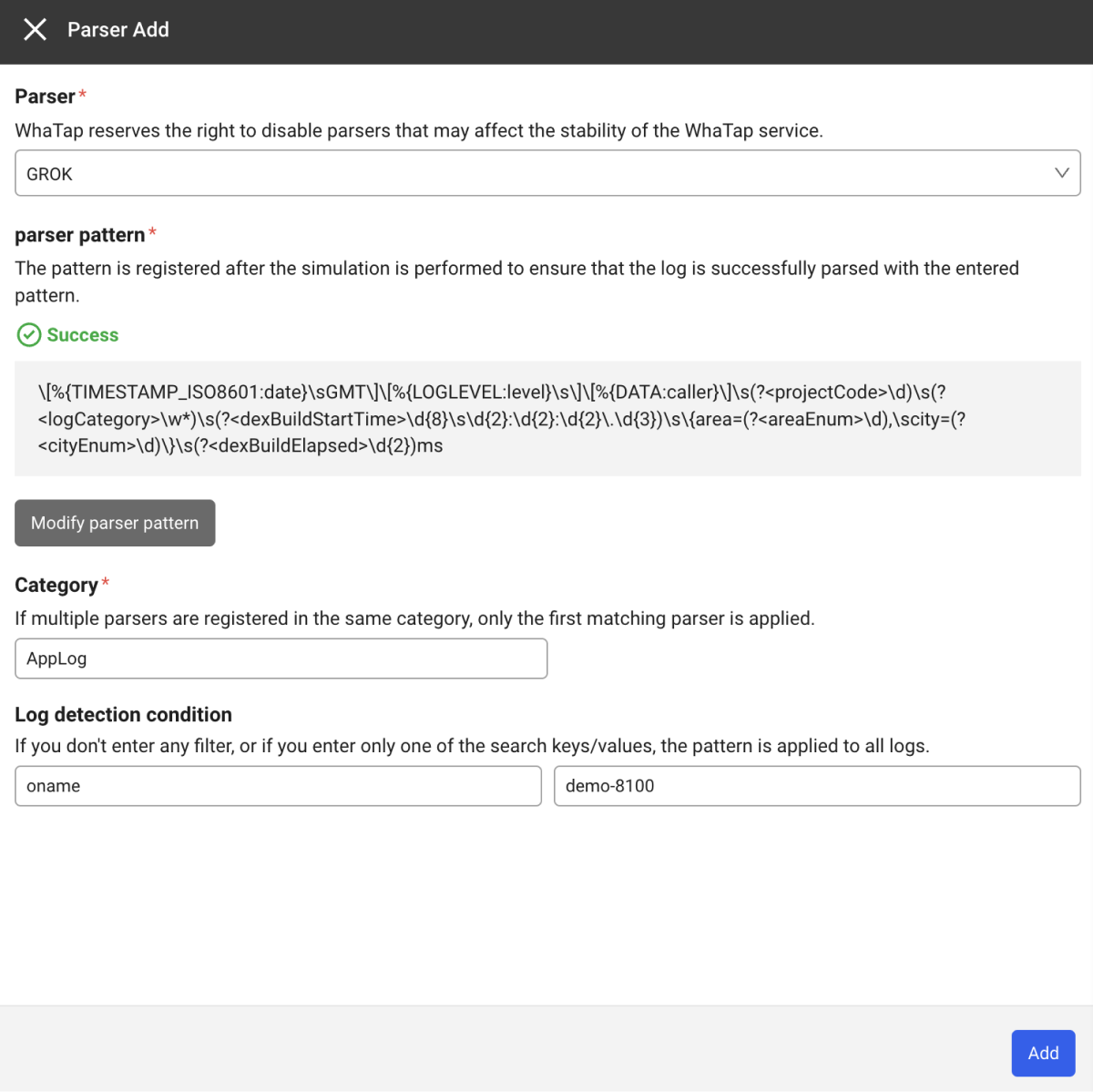
After applying the pattern, enter values for Category, Log detection condition, and Pattern.
-
Category
Select a log category. Category is required.
-
Log detection condition
-
Only the logs that meet the conditions are applied to the parser.
-
Select or enter values for Search key and Search value.
-
Log detection condition are applied before all parsers are run. Accordingly, you cannot use the Tag that have been added for the parser.
-
-
Category
-
Select Add to register a parser.
-
In the log parser list, you can change the Priority or Enable, Edit, or Delete the parser.
-
After parser simulation, you can register a pattern.
GROK parser precautions
-
GROK parser supports two patterns:
%{SYNTAX:SEMANTIC}and%{SYNTAX:SEMANTIC}. -
When using the
%{SYNTAX:SEMANTIC}pattern,SEMANTICmust be entered. -
When using the
%{SYNTAX:SEMANTIC}pattern,SEMANTICmust be unique in a parser. -
When using the
(?<SEMANTIC>REGX)pattern,SEMANTICcan only contain characters (a-z, A-Z), numbers (0-9), and specified special characters (.,_,-). -
SEMANTICmust start with a character (a-z, A-Z). -
SEMANTICmust end with a character (a-z, A-Z) or number (0-9).
Selecting additional GROK patterns
During GROK parser simulation, in addition to the basic patterns (WORD, NUMBER, IP, etc.), you can select additional patterns that match a specific log format. 32 pattern types, such as Java, Nginx, and MySQL, are provided grouped into 11 categories.

-
In the parser simulation window, click the dropdown in the Additional patterns (optional) area.
-
From the list of pattern types grouped by category, select the pattern type you need. You can also search by entering a pattern type name or description in the search box.
-
The selected pattern type is loaded together with the basic patterns during simulation.
The basic patterns (Core) are always included automatically. Selecting additional patterns is optional.
Pattern type list by category
| Category | Pattern type |
|---|---|
| Web Servers | haproxy, httpd, iis, nginx, squid |
| Application Servers & Frameworks | java, log4j, rails, ruby, springboot |
| Databases | mongodb, mysql, oracle, postgresql, redis |
| Cloud | aws |
| System & Infrastructure | docker, kubernetes, linux-syslog |
| Messaging & Search | elasticsearch, kafka |
| Network & Security | bind, bro, firewalls, junos, zeek |
| exim, postfix | |
| Monitoring & Backup | bacula, mcollective, nagios |
| Build Tools | maven |
Usage example
To parse a Tomcat Catalina 8 log, select the java pattern type additionally and then use the %{CATALINA8_LOG} pattern.
31-Jul-2020 16:40:38 INFO [main] org.apache.catalina.startup.VersionLoggerListener.log Server version name: Apache Tomcat/8.5.57
%{CATALINA8_LOG}
- log_timestamp : 31-Jul-2020 16:40:38
- log.level : INFO
- java.log.origin.thread.name : main
- java.log.origin.class.name : org.apache.catalina.startup.VersionLoggerListener
- log.origin.function : log
- log_message : Server version name: Apache Tomcat/8.5.57
Viewing pattern details
You can check which patterns are included in the selected additional pattern type in the details window. You can look up the pattern definitions (regular expressions) and sample logs and apply them directly to the simulation.

After selecting an additional pattern type, click the selected pattern type tag to open the details window on the right. The details window is displayed side by side without hiding the simulation form, so you can proceed with the simulation while checking the pattern definitions.
You can use the following functions in each pattern item.
| Button | Function | Description |
|---|---|---|
| Sample | Enter a sample log | Automatically enters an example log that matches the pattern into the Simulation parsing log input box. |
| Select | Insert a pattern | Inserts it into the Pattern input box in the %{pattern_name} format. The corresponding pattern type is also selected automatically. |
| Copy | Copy to clipboard | Copies the %{pattern_name} format to the clipboard. |
-
When you click a pattern item, its pattern definition (regular expression) expands. You can expand multiple patterns at the same time to compare their definitions.
-
In the
%{PATTERN:field}references included in a pattern definition, the pattern name, field name, and literal characters are displayed distinguished by different colors. -
You can run the simulation directly with the log entered by the Sample button to check the parsing result.
Saving simulation sample logs
The log used in the simulation is saved automatically together with the parser settings. When you edit a parser, the sample log used previously is restored automatically to the simulation window, so you do not need to enter the log again each time.
JSON parser
If logs are collected in JSON format, they can be easily parsed using the JSON parser.
Applying the JSON
Log Configuration > Log primary parser setting
-
To apply the JSON pattern parser, go to the Log primary parser setting tab in Log Configuration.
-
Select + Add and then select the JSON parser in the Parser field.
-
When you select Register pattern, the pattern registration and simulation window appears on the right.
-
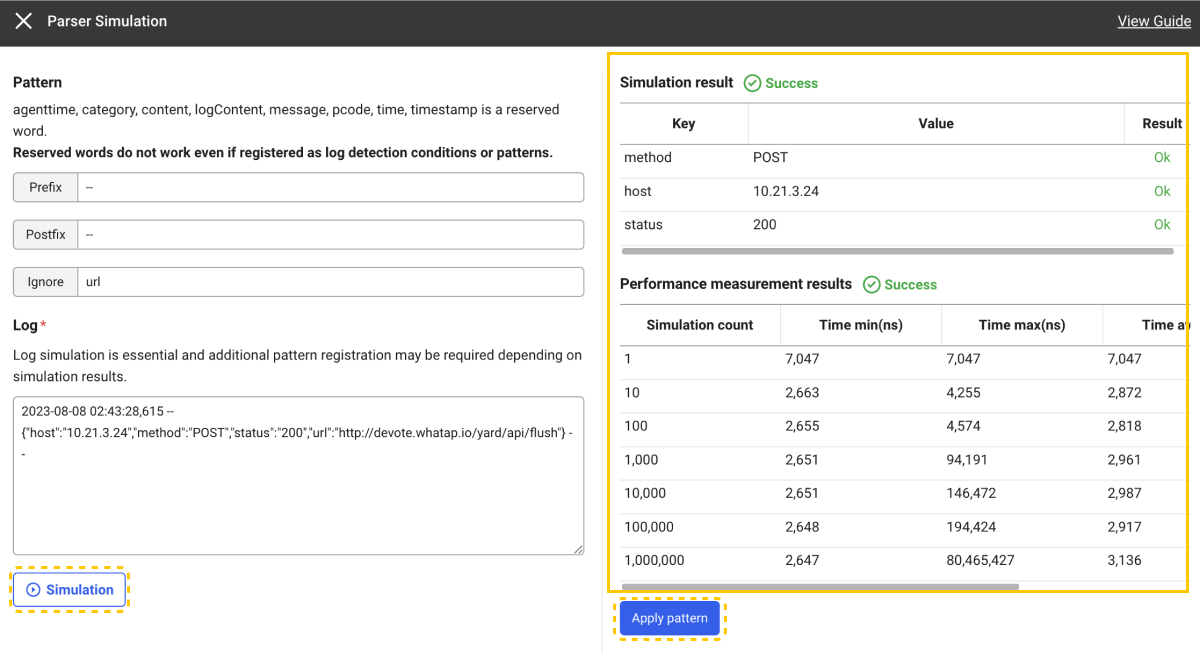
Enter Pattern and Log, and then click Simulation to check whether parsing is successful with the pattern to apply.
Example2023-08-08 02:43:28,615 -- {"host":"10.21.3.24","method":"POST","status":"200","url":"http://dev.whatap.io/yard/api/flush"} --In the example log, if Prefix and Postfix are specified as
--andurlis specified in Ignore, only three Tag (host,method,status) are created.-
Prefix Specify the position where the JSON format begins in the log. If the entire log is in JSON format, set an empty value.
-
Postfix Specify the position where the JSON format ends in the log. If the entire log is in JSON format, set an empty value.
-
Ignore Specify the key for which tags are not created during JSON formatting.
-
-
If the simulation is successful, you can view Simulation result and Performance measurement results.
-
When you click Apply pattern after simulation, the pattern that has been entered for the selected parser is applied.
-
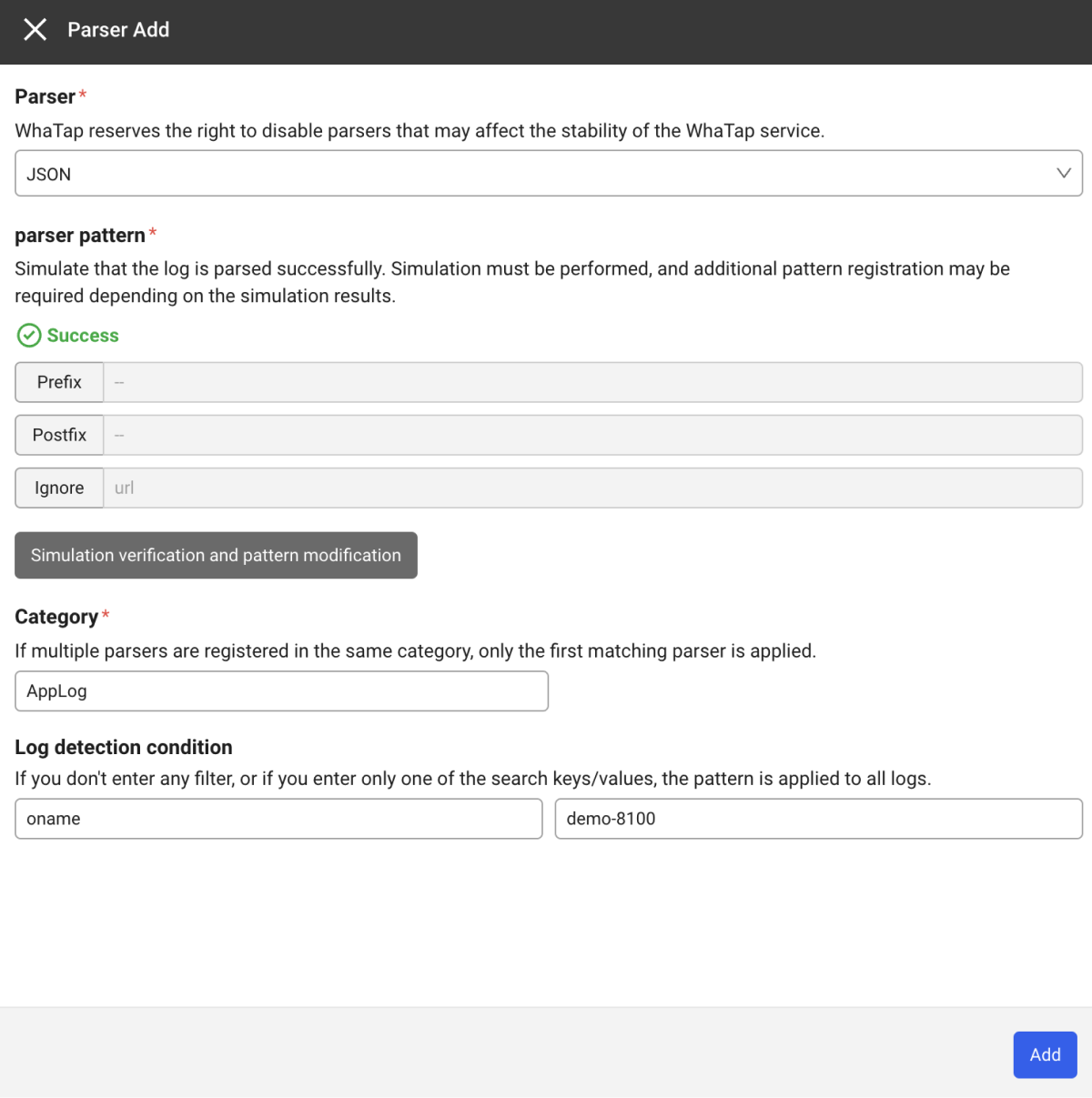
After applying the pattern, enter values for Category, Log detection condition, and Pattern.
-
Category
Select a log category. Category is required.
-
Log detection condition
-
Only the logs that meet the conditions are applied to the parser.
-
Select or enter values for Search key and Search value.
-
Log detection condition are applied before all parsers are run. Accordingly, you cannot use the Tag that have been added for the parser.
-
-
Category
-
Select Add to register a parser.
-
In the log parser list, you can change the Priority or Enable, Edit, or Delete the parser.
-
Before registering a parser, you can check whether the pattern to register is normal through Simulation. It is the same as the GROK parser registration simulation process. See the following.
Example of using JSON format
{"host":"10.21.3.24","method":"POST","status":"200","url":"http://dev.whatap.io/yard/api/flush"}
If the above sample log has been collected, select the JSON parser in the Parser Add window. Without having to write a complex parsing logic, you can extract the Tag for log analysis as follows:
- host : 10.21.3.24
- method : POST
- status : 200
- url : http://dev.whatap.io/yard/api/flush
Usage example when configuring part of the JSON format
2023-08-08 02:43:28,615 -- {"host":"10.21.3.24","method":"POST","status":"200","url":"http://dev.whatap.io/yard/api/flush"} --
If part of the log is in JSON format as in the example, specify Prefix and Postfix. WhaTap log monitoring recognizes and parses the area between Prefix and Postfix in JSON format.
- host : 10.21.3.24
- method : POST
- status : 200
- url : http://dev.whatap.io/yard/api/flush