XOS agent configuration
To additionally monitor the resources of the database server, run a separate XOS agent process on the database server to collect data.
-
It can be applied to only the OS environment running on the x86 architecture.
-
For more information about the XOS agent installation, see the following.
Configuring the whatap.conf file
Set the following options in the whatap.conf file before running the XOS agent.
-
xos Int
Default
0Set whether or not to use the XOS agent. If the value is
0the XOS agent is not used for collection. Enter the value as1or IP address of the XOS agent. If the IP address is specified, data is collected from only the XOS agent. -
xos_port String
Default
3002Set the port to communicate with the XOS agent. XOS agent can be communicated via UDP. If you have set a firewall on that port, disable it for UDP communication.
-
xos_cpu_iowait Int
Default
1Set whether the CPU utilization collected from the XOS agent is to include the iowait value. If the value is set to
1, the iowait value is included. If set to0, the value is not included. -
xos_mem_buffcache Int
Default
0Set whether the memory utilization collected from the XOS agent is to include the buffcache value. If the value is set to
1, the buffcache value is included. If set to0, the value is not included.
Configuring the xos.conf file
Copy the xos directory to the database server, and then enter the agent server information and set additional options in the xos.conf file.
-
dbx_ip String
Enter the IP address of the server in which the DBX agent has been installed.
-
dbx_port String
Default
3002Set the port to communicate with the DBX agent. DBX agent can be communicated via UDP. If you have set a firewall on that port, disable it for UDP communication.
-
cpu_limit Int
Default
0It collects the process data with a value greater than the set limit. If it is 1.23% (1/100% step), set it to
123. -
mem_limit Int
Default
10240It collects the process data with a value greater than the set limit. 10240 (Kbytes) indicates 10 MB.
-
disk_usage_interval Second
Default
60It displays the disk utilization, free sizes, and total sizes for each instance. If the value is
0, the disk utilization is not collected. -
port_check String
The XOS agent attempts to connect directly to the port specified as an option. If it fails, the port list is sent to the
db_port_checkcategory.xos.confport_check=192.168.122.113:3333,192.168.122.113:3334If access cannot be made via the specified port, you can check it after selecting the
db_port_checkcategory in Analysis > Metrics Search.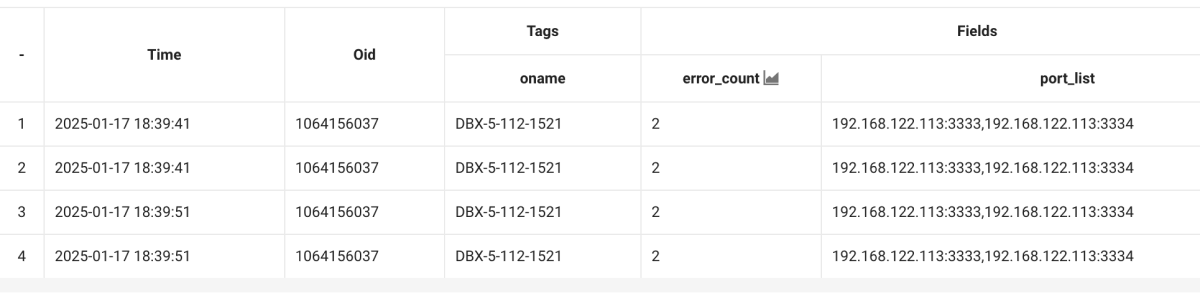
-
process_check String
You can monitor the running status of processes. Enter the process name as an option. You can register multiple items using comma (,) as the delimiter.
xos.confprocess_check=pmon,smon,tnslsnr,melong,hahaWhen the process containing the string is not monitored, the data is sent to the
db_process_checkcategory. For example, if there have no melong and haha processes, you can check it after selecting thedb_process_checkcategory from the Analysis > Metrics Search menu.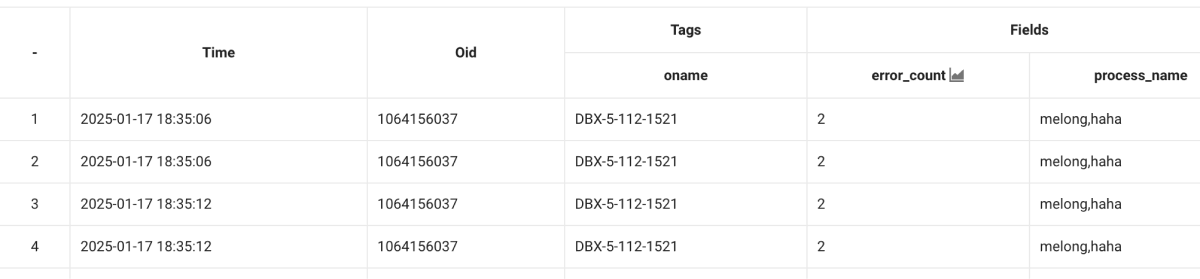 Note
NoteYou can use the
process_checkoption to send an alert when a process running in the database ends. For more information, see the following. -
process_check_interval Second
Default
6The
process_checkoption sets the time interval for collecting the process execution status. -
iplist_interval Second
Default
0(Off)Set the time interval for collecting the IP list for the database server. You can set the time interval in seconds (minimum of 3 seconds).
NoteIf the
xos_dbip=trueoption is set in the whatap.conf file, it is sent to thedb_ip_listcategory. You can check it after selecting thedb_ip_listcategory from the Analysis > Metrics Search menu.
-
file String
To use the Log menus (Live Tail, Log Trend, Log Search, Log Configuration), enter the absolute path in the
fileoption for the log files to be monitored.xos.conffile=/home/oracle/diag/rdbms/ora18/ORA18/trace/alert_ORA18.logTipTo add a logfile to monitor, add options in the same way as
file,file1,file2.xos.conffile={log_file_path1}
file1={log_file_path2}
file2={log_file_path3}
file3={log_file_path4}
User Metric Collection (SHMON)
SHMON periodically collects the results of user-defined shell scripts and stores them as metrics.
-
shmon Int
Default value:
1Supported version: dbx 2.55.01 or later & xos 1.2.0f or later
Configuration
- Create a
shmondirectory in the agent installation path. - Save the script to be collected as a
.shfile. - Enable SHMON in
xos.conf. - Restart the agent.
- In the
 Sitemap > Metrics Search menu, check the
 shmoncategory.
# xos.conf
shmon=1
-
The
fileoption is available in DBX Agent 1.9.0 or later. -
For more information about the Log menus, see the following.
Running the XOS agent
Run the following batch file on the database server.
$ ./start.sh

# or

$ ./startd.sh # When running in the background